
Browse all guides
For agency owners
- Get your agency account
- Create a client workspace
- Connect Google Search Console
- Add your team
- Give clients their own login
- Set monthly SEO plans
- Build your link library
- Create and apply niche profiles
- Review and approve work
- Monitor link health
- Track team performance
- Report cards and client emails
- Backlink profile
- Track AI search (AEO & GEO)
- Recurring tasks and the Task Board
For agency owners · 2 min read
Add your team
Create logins for your SEO and ads staff, choose their role and assign the clients they work on.
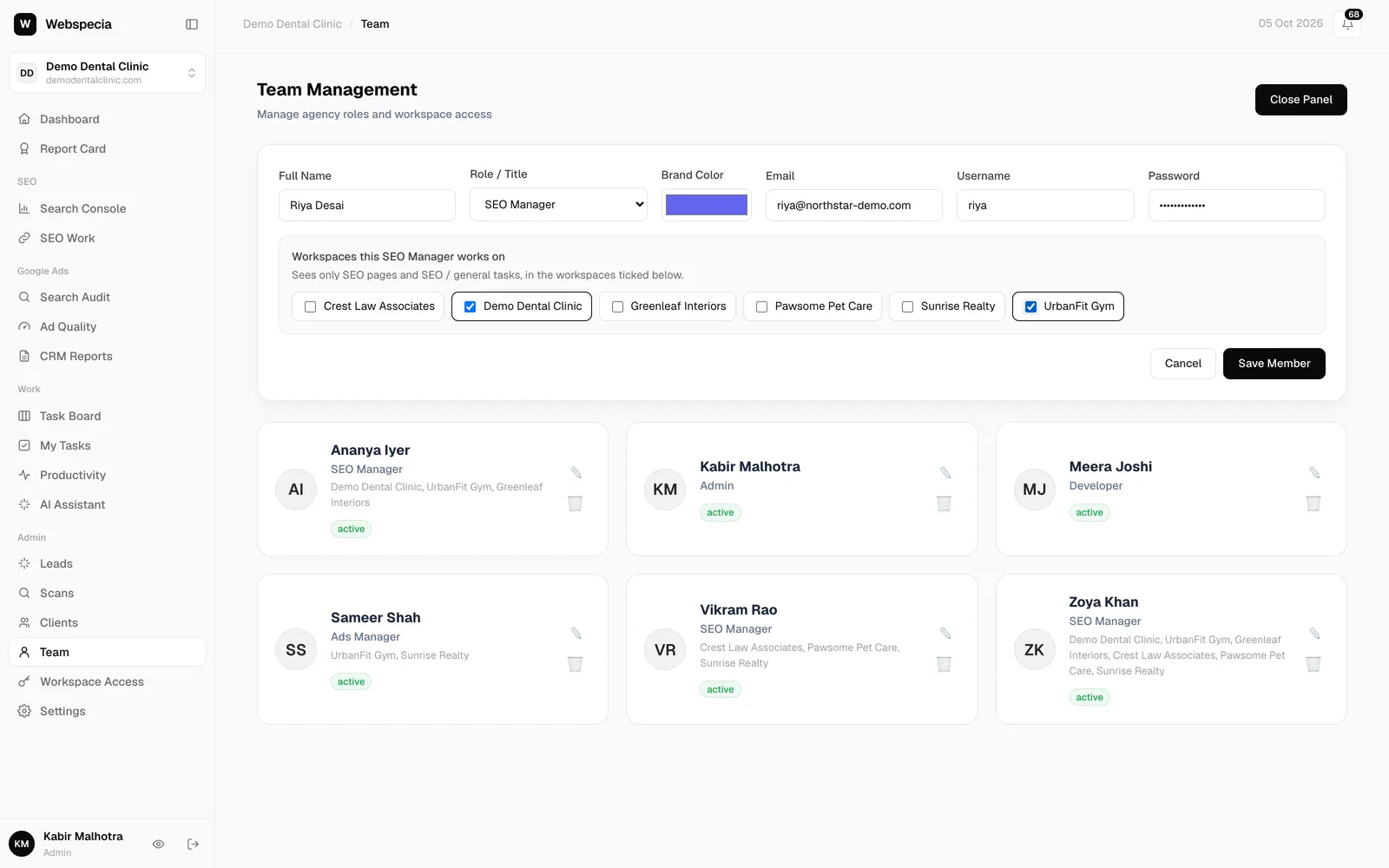
Add a team member
- In the sidebar, under Admin, open Team.
- Click + Add Member.
- Fill in Full Name, choose a Role / Title, pick a Brand Color for their avatar, and enter their Email, a Username and a Password (at least 8 characters).
- For an SEO Manager or Ads Manager, tick the workspaces they work on under Workspaces this SEO Manager works on. At least one is required.
- Click Save Member. Share the username (or email) and password with them; they sign in at /login.
Choose the right role
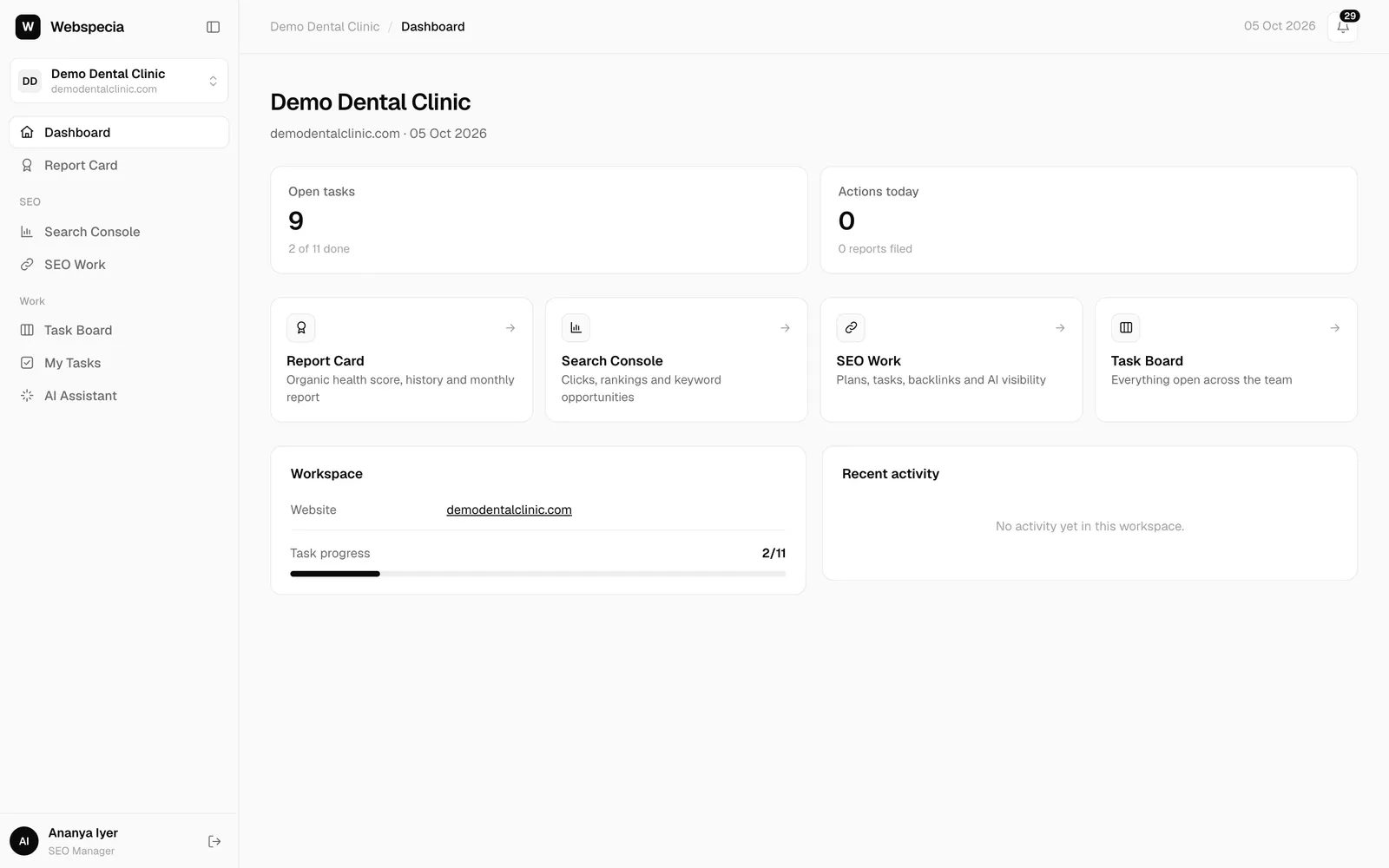
SEO and Ads Managers only see the workspaces you tick, and only their part of the work. Admins see everything. The full list is in Roles and permissions.
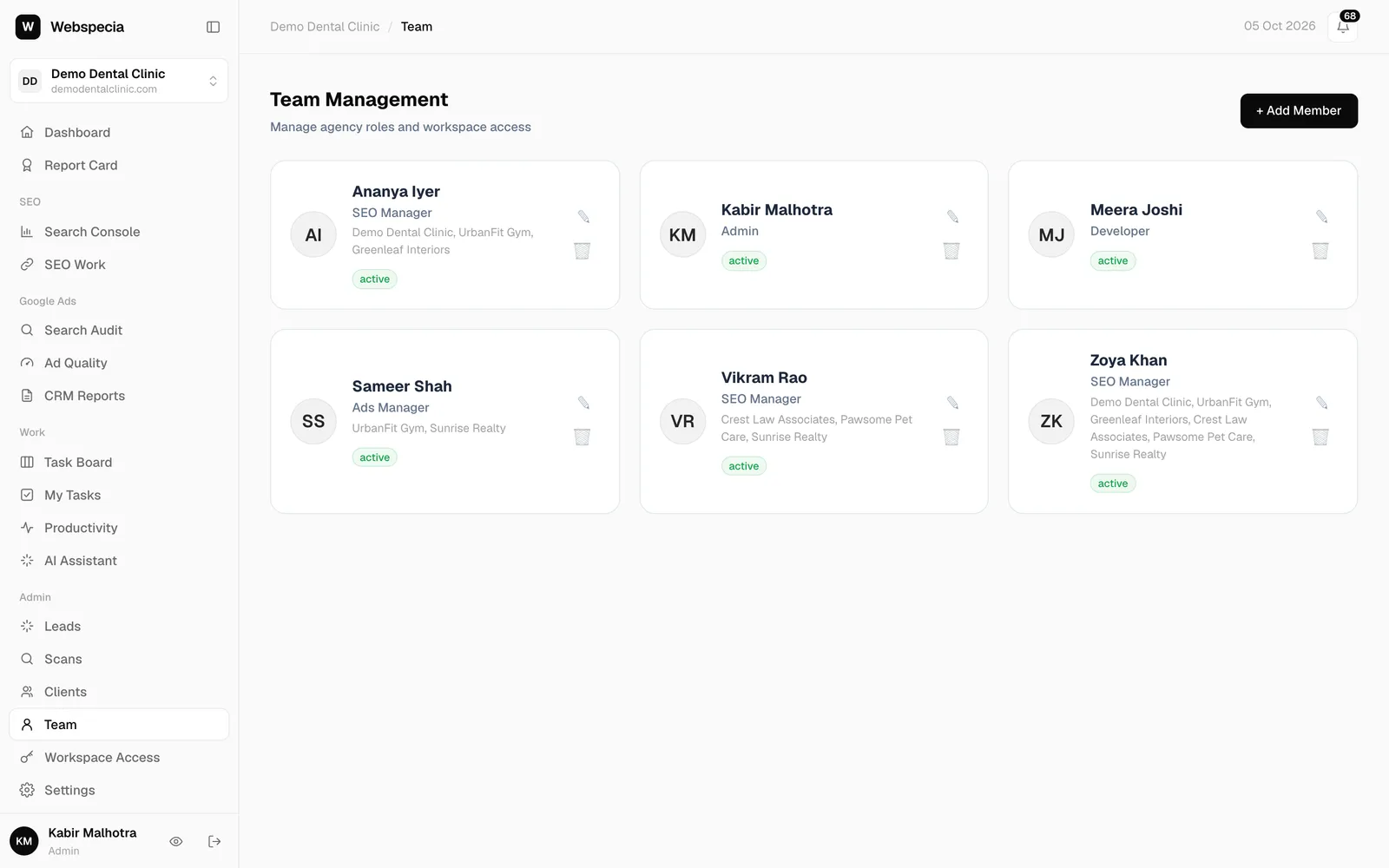
Edit or remove someone
- Click the ✎ icon on a card to change role, workspaces or password (leave the password blank to keep it).
- Click the bin icon to delete a member. You can’t delete yourself.
See the app as someone else
Click the eye icon (View as another login) at the bottom of the sidebar and pick a team member or a client login. You see exactly what they see, read-only, for up to an hour. Click Switch back to … in the banner to return.
Still stuck? Our team will walk you through it.
Talk to Webspecia