
Browse all guides
For agency owners
- Get your agency account
- Create a client workspace
- Connect Google Search Console
- Add your team
- Give clients their own login
- Set monthly SEO plans
- Build your link library
- Create and apply niche profiles
- Review and approve work
- Monitor link health
- Track team performance
- Report cards and client emails
- Backlink profile
- Track AI search (AEO & GEO)
- Recurring tasks and the Task Board
Start here · 2 min read
Log in and reset your password
Sign in with your username or email, and get a reset code if you forget your password.
Log in
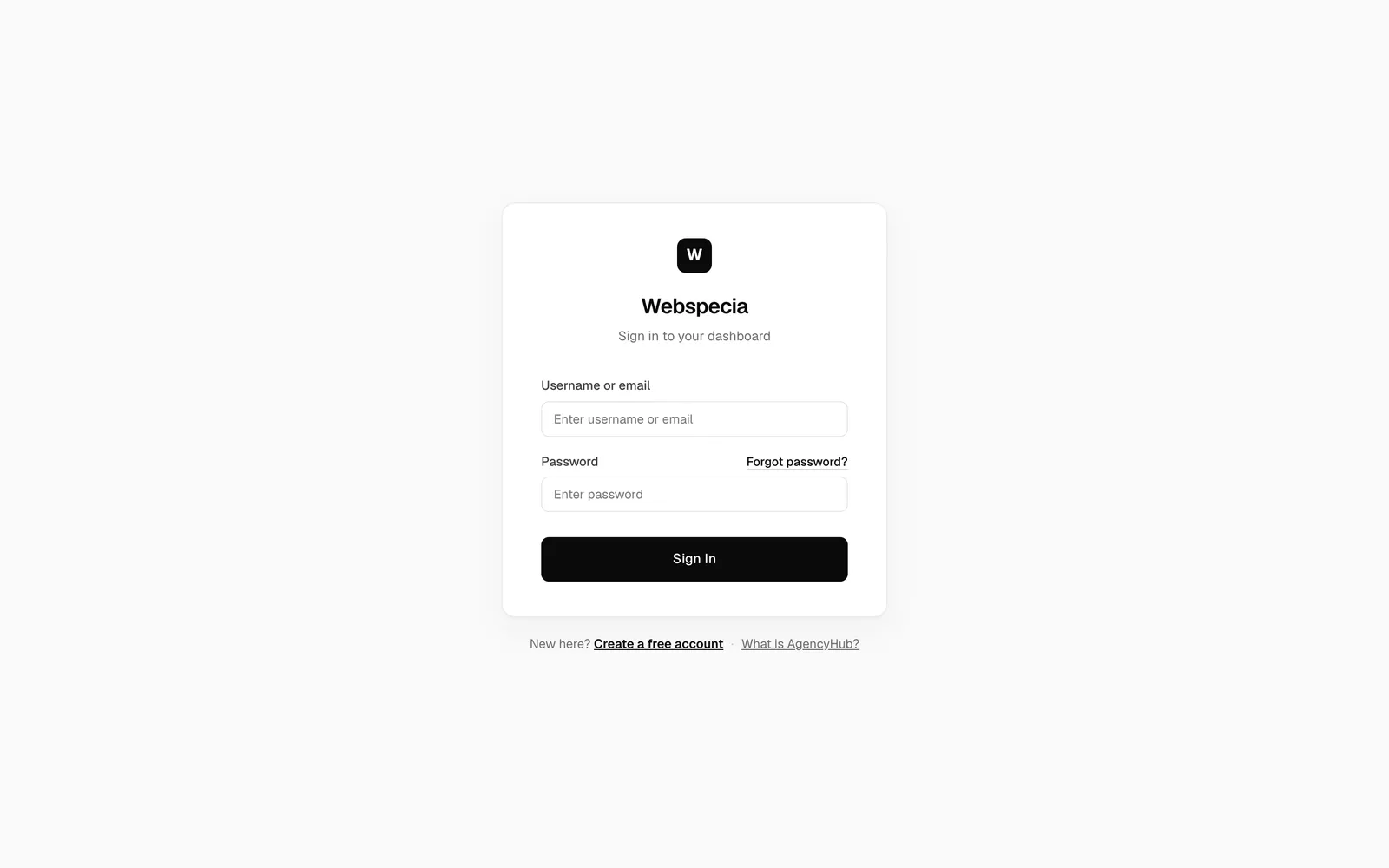
- Go to ai.webspecia.in/login.
- Enter your Username or email and Password.
- Click Sign In. Agency staff see Choose a workspace next; client logins go straight to their own workspace.
Forgot your password?
- On the sign-in page click Forgot password?
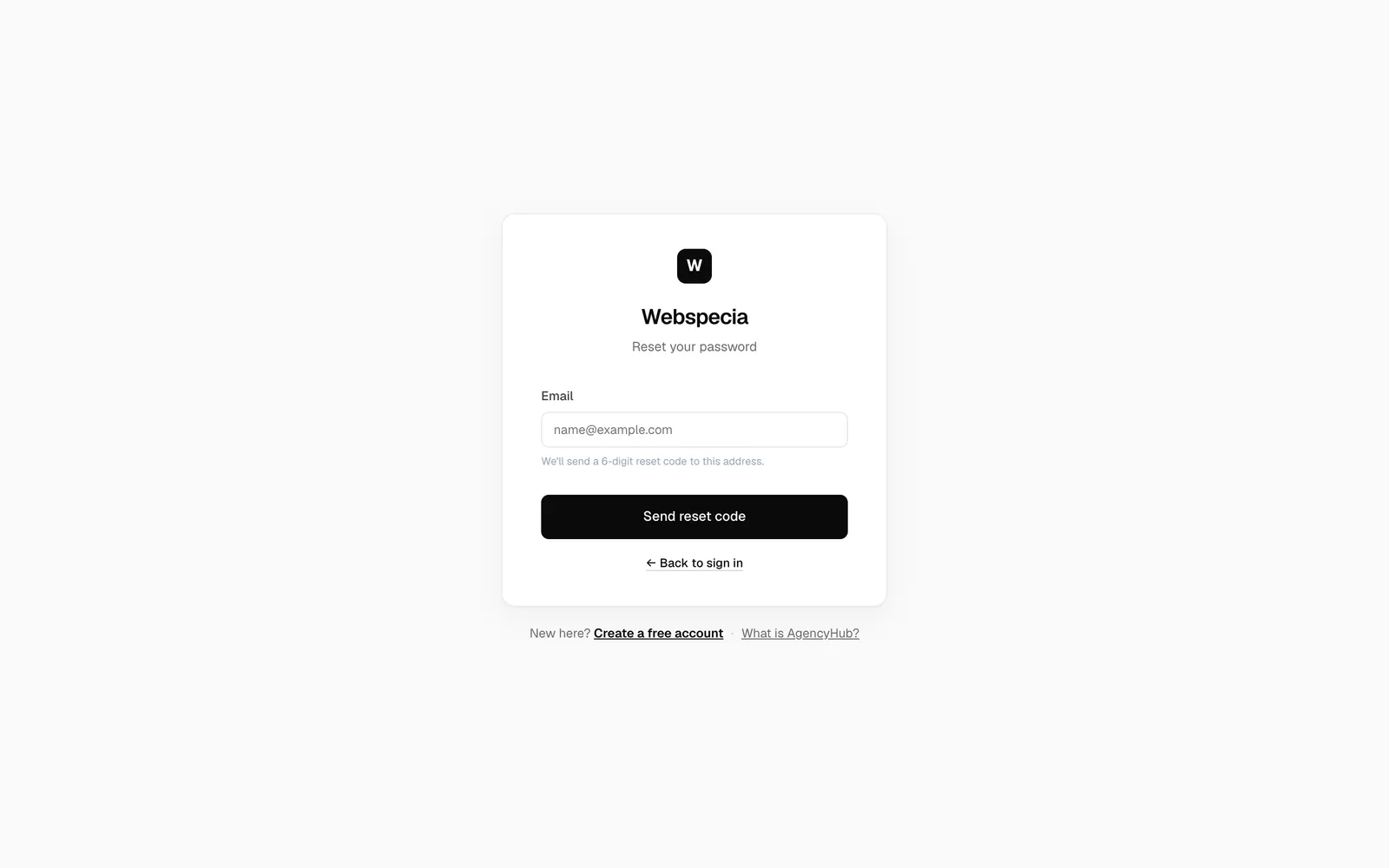
- Enter the Email on your login and click Send reset code.
- Check your inbox for a 6-digit code. It is valid for 10 minutes.
- Enter the code, your New password and Confirm new password, then click Reset password.
- Click Back to sign in and log in with the new password.
Didn’t get the code?
- Check spam or promotions folders.
- Use Resend code, or ← Use different email if you typed the wrong address.
- You can request up to 3 codes per email every 15 minutes.
Still stuck? Our team will walk you through it.
Talk to Webspecia