
Browse all guides
- Get your agency account
- Create a client workspace
- Connect Google Search Console
- Add your team
- Give clients their own login
- Set monthly SEO plans
- Build your link library
- Create and apply niche profiles
- Review and approve work
- Monitor link health
- Track team performance
- Report cards and client emails
- Backlink profile
- Track AI search (AEO & GEO)
- Recurring tasks and the Task Board
For agency owners · 3 min read
Create and apply niche profiles
A niche profile lists the sites to build links on for one type of business. Apply it and every site becomes an open task your SEOs can take.
A niche profile is a list of link-building sites for one type of business and country, such as “Healthcare – India”. Every site says what the SEO does there (create a profile, post a listing, write an article, or answer a question) and how long it takes in working hours. Four ready-made profiles are included: Healthcare – India, Local business – India, Software / SaaS – India and Healthcare – Canada.
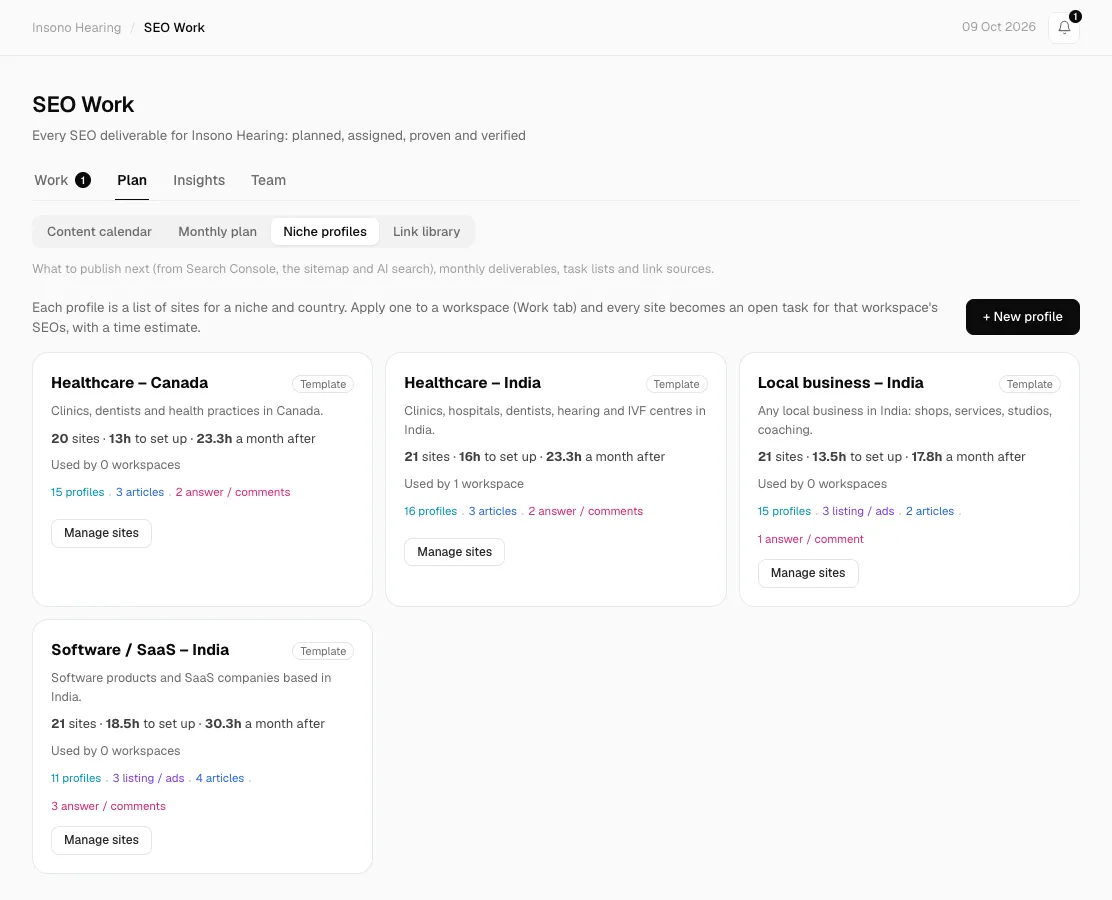
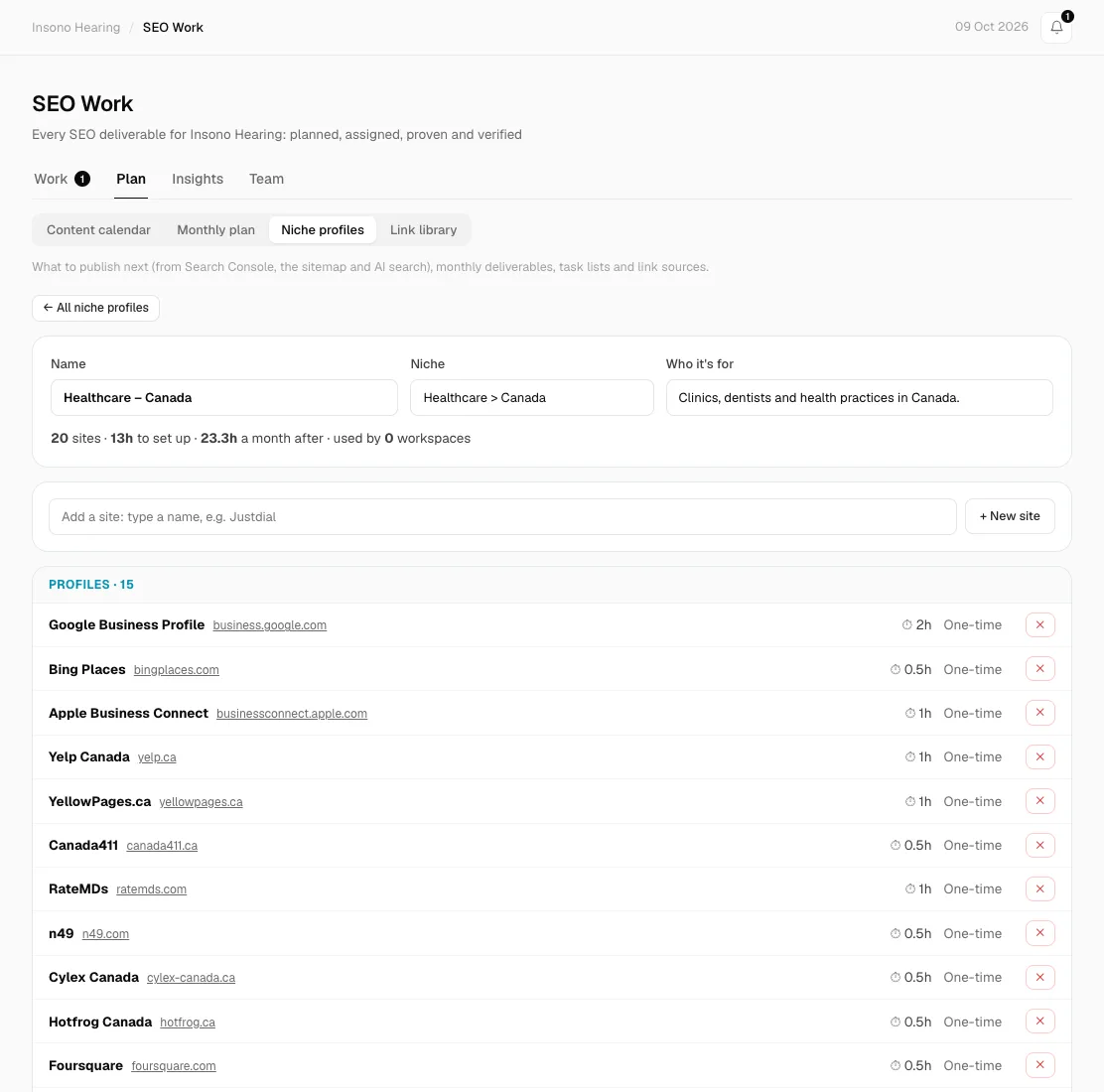
Add or remove sites
- Go to SEO Work → Plan → Niche profiles and click Manage sites on a profile.
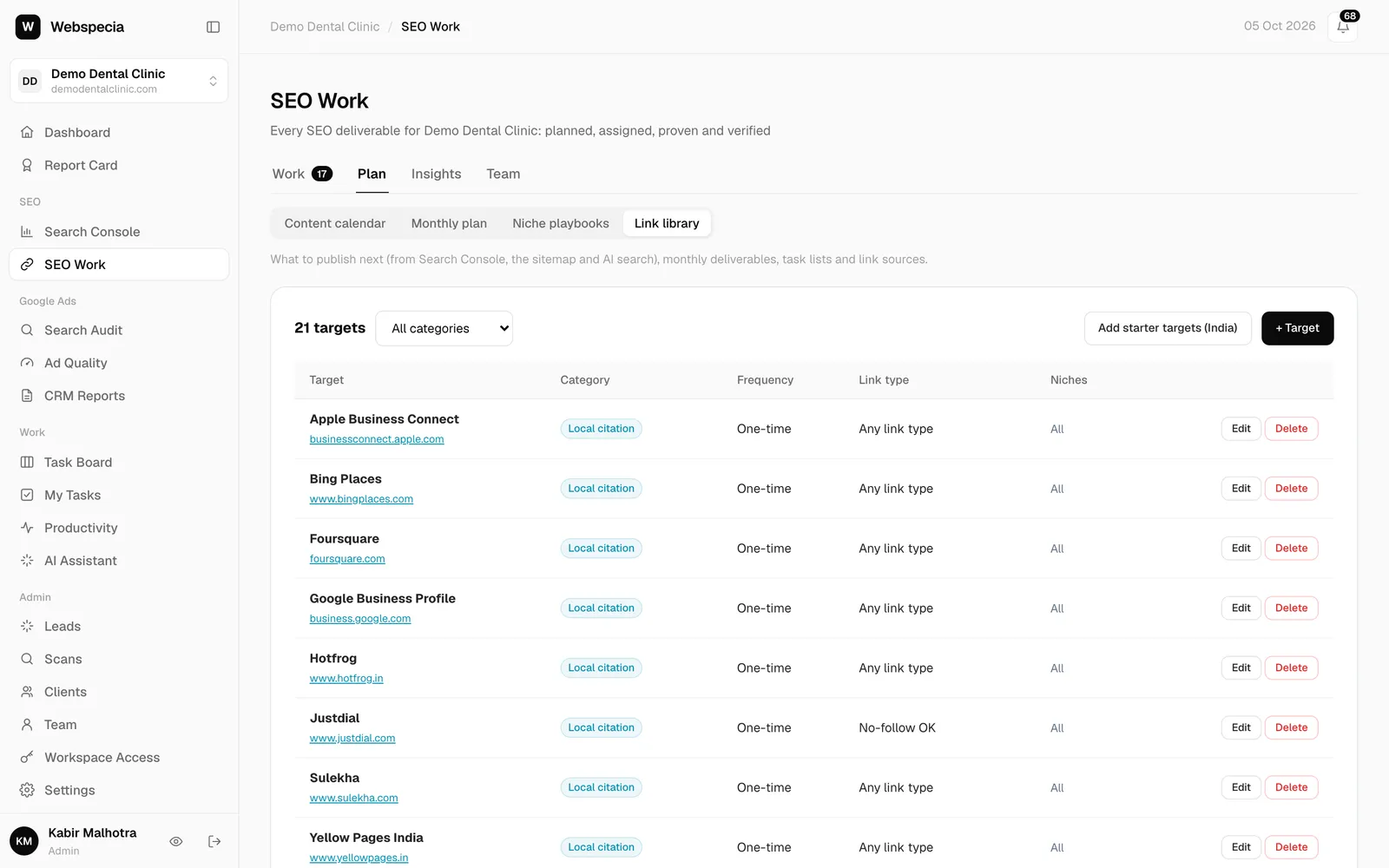
- To add a site, type its name in Add a site and pick it from the list. If it isn’t in the library yet, click Create “…” (or + New site), choose what the SEO does and how many hours it takes.
- To remove a site, click ✕ on its row.
- To make your own profile, click + New profile and start from an empty list or a copy of an existing one.
Changes reach every workspace using the profile
- A site you add becomes an open task in every workspace that uses the profile, straight away.
- A site you remove leaves the open tasks of those workspaces. Tasks an SEO has already taken are kept.
- Editing a site’s hours or instructions in the Link library updates every task nobody has taken yet.
Apply a profile to a client
- Open the client workspace and go to SEO Work → Work → Pipeline.
- Choose the profile in Choose a niche profile… and click Apply niche profile.
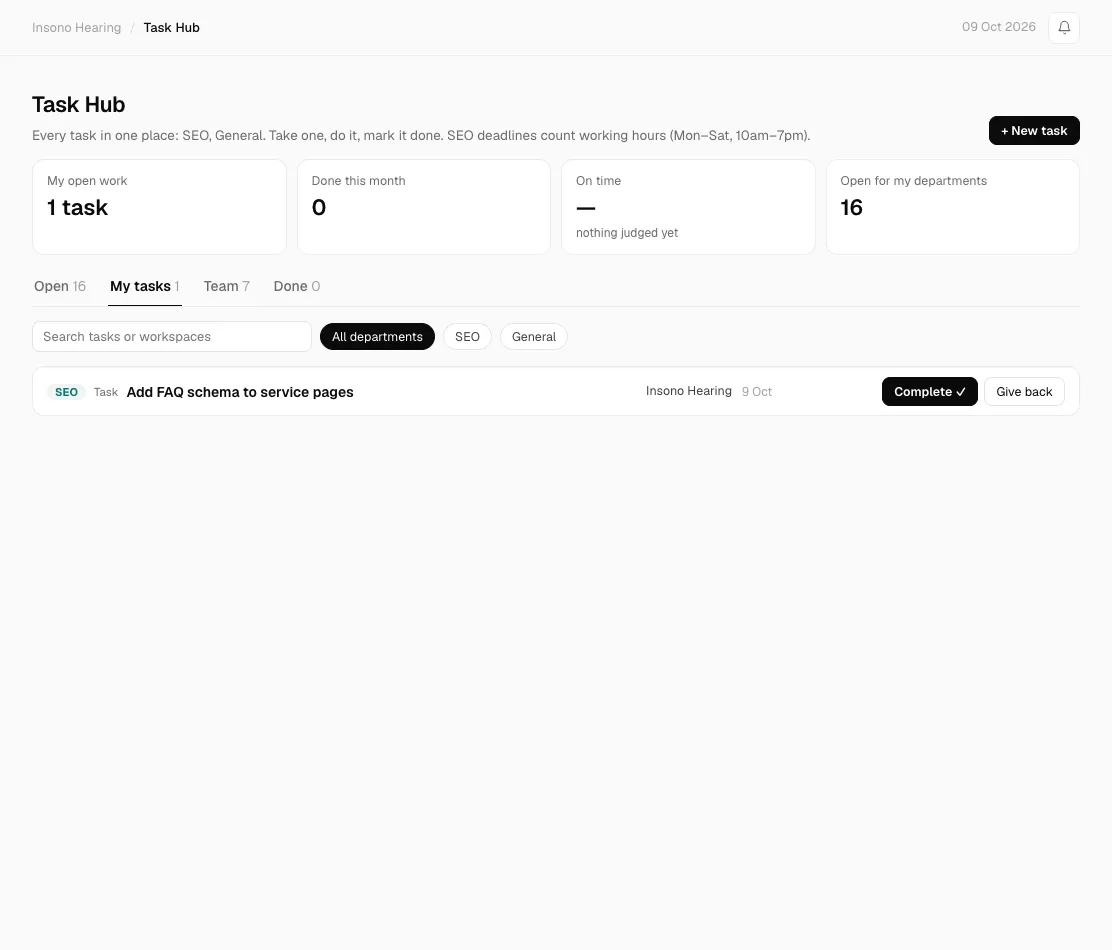
- Every site becomes an open task with its time estimate. SEO Managers assigned to the workspace get a notification and take tasks from the Task Hub.
Recurring sites refill themselves
One-time sites are added once per workspace, ever, so applying a profile twice never duplicates them. Weekly and monthly sites (Quora answers, Medium articles) get a fresh open task every period, automatically.
See who delivers on time
In Task Hub → Team you see, for each person, the work they hold now, tasks approved this month, hours earned (the estimates of their approved tasks), on-time rate, average delay and how often they gave tasks back. You can also return any task to the open pool or assign an open task to someone.
Still stuck? Our team will walk you through it.
Talk to Webspecia