
Browse all guides
For agency owners
- Get your agency account
- Create a client workspace
- Connect Google Search Console
- Add your team
- Give clients their own login
- Set monthly SEO plans
- Build your link library
- Create and apply niche profiles
- Review and approve work
- Monitor link health
- Track team performance
- Report cards and client emails
- Backlink profile
- Track AI search (AEO & GEO)
- Recurring tasks and the Task Board
For clients & business owners · 2 min read
Connect Google Search Console
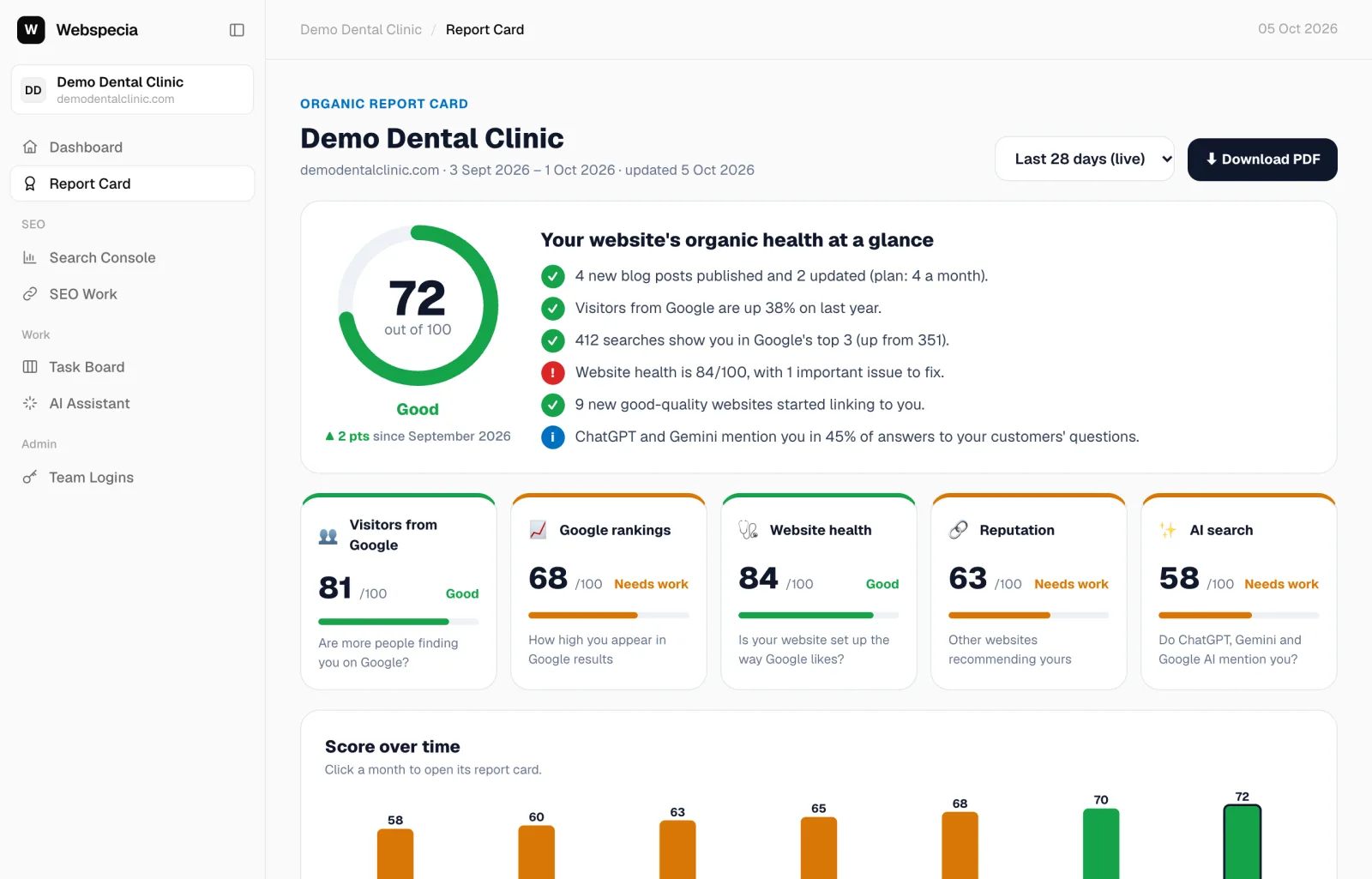
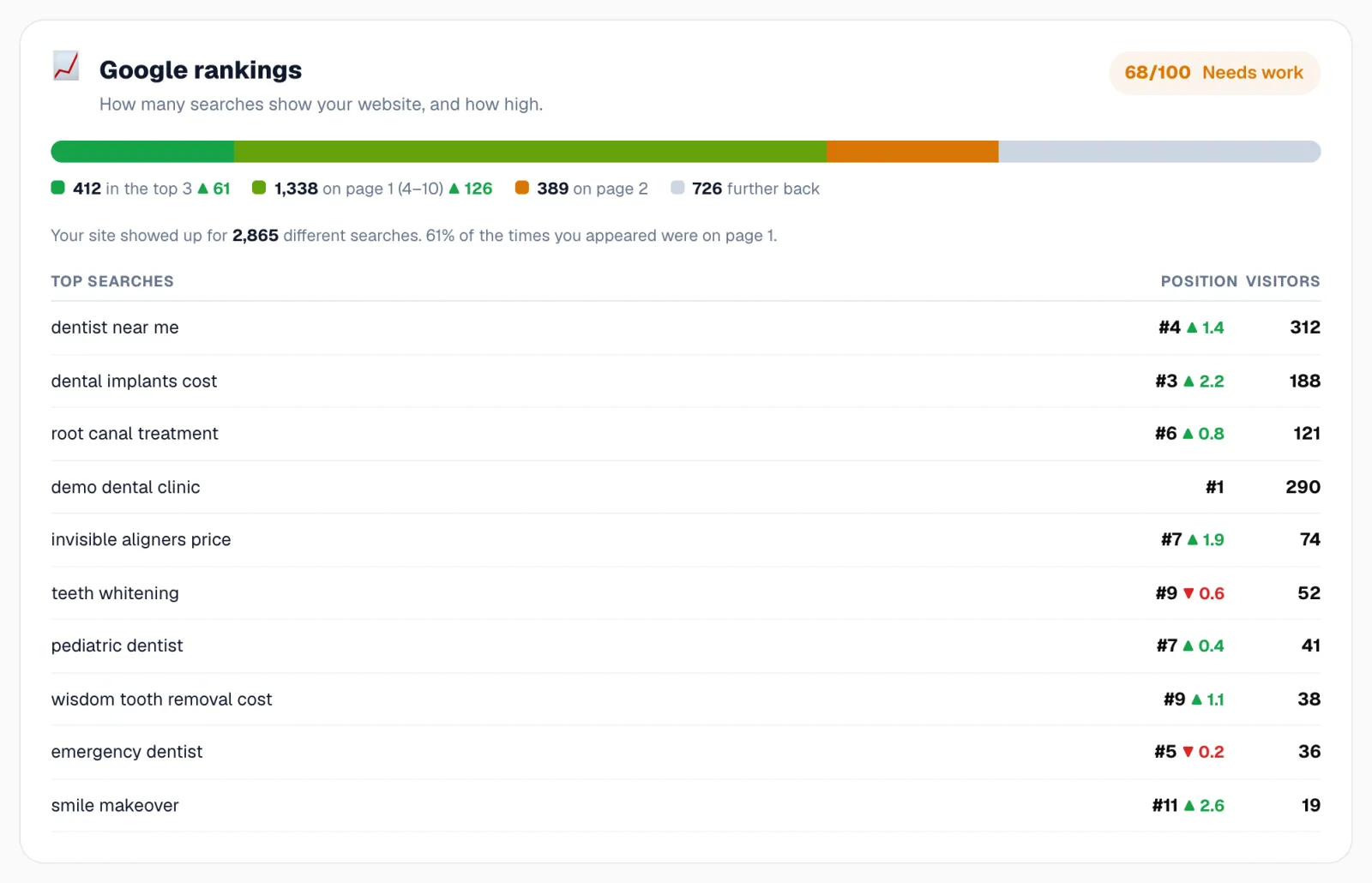
Link your Google Search Console (read-only) so your visitors, rankings and best pages appear.
Google Search Console is Google’s free tool that records how people find your website. AgencyHub only ever reads it; it can never change anything.
Connect
- Click Search Console in the sidebar.
- Click Connect with Google and sign in with the Google account that owns your Search Console.
- Allow read-only access. You come back to AgencyHub with Google Search Console connected.
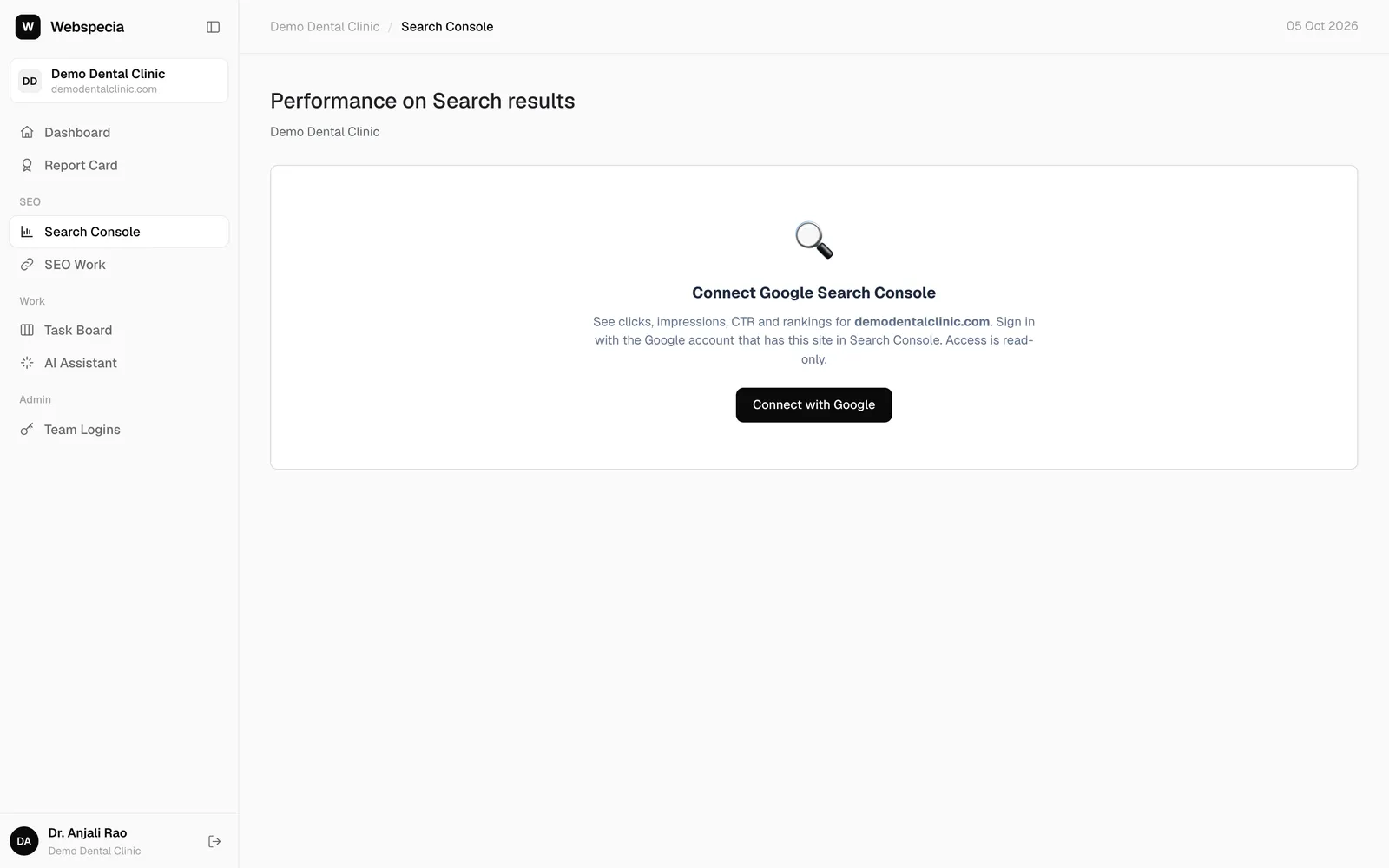
Only the CEO login can connect. Other logins see “Ask your CEO login or the agency to connect it.” Your agency can also connect it for you.
Don’t have Search Console yet?
- Go to Google Search Console and add your website as a Domain property.
- Verify it (Google gives you a DNS record to add, or ask your web developer).
- Come back and click Connect with Google. Data from Google takes a few days to build up for brand-new properties.
If it says “Domain not found in Search Console”
The Google account you used can’t see your website’s property. Click Change account and use the right one, or add that account under Settings → Users and permissions in Search Console, then click Re-check property.
Related guides
Still stuck? Our team will walk you through it.
Talk to Webspecia