
Browse all guides
For agency owners
- Get your agency account
- Create a client workspace
- Connect Google Search Console
- Add your team
- Give clients their own login
- Set monthly SEO plans
- Build your link library
- Create and apply niche profiles
- Review and approve work
- Monitor link health
- Track team performance
- Report cards and client emails
- Backlink profile
- Track AI search (AEO & GEO)
- Recurring tasks and the Task Board
For agency owners · 2 min read
Create a client workspace
Add a client, set their website domain, switch between clients and pause or archive a workspace.
Each client gets its own workspace. Its website domain is used to match Google Search Console, run the website scan and check backlinks.
Create the workspace
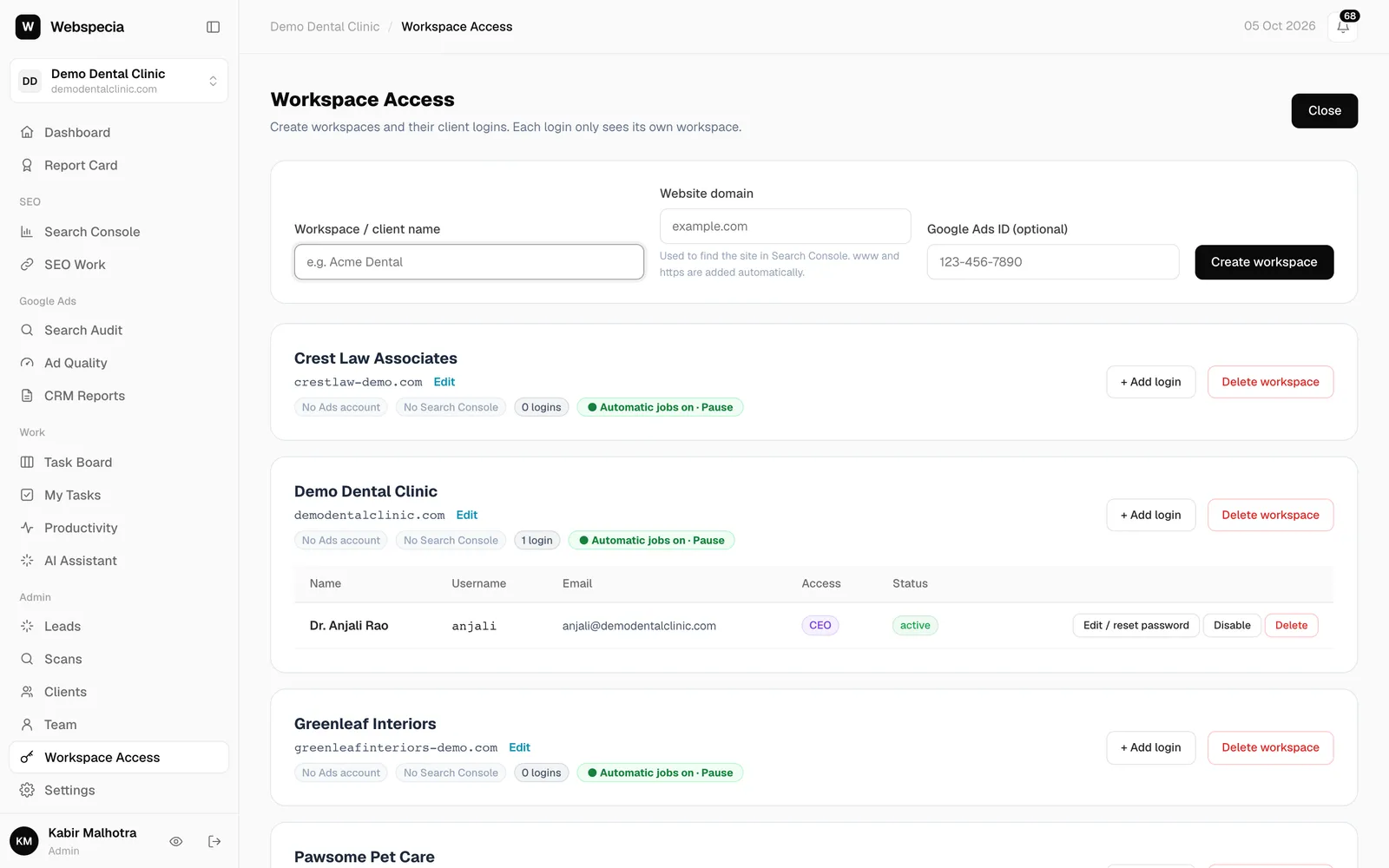
- In the sidebar, under Admin, open Workspace Access.
- Click + New Workspace.
- Enter the Workspace / client name and the Website domain (for example
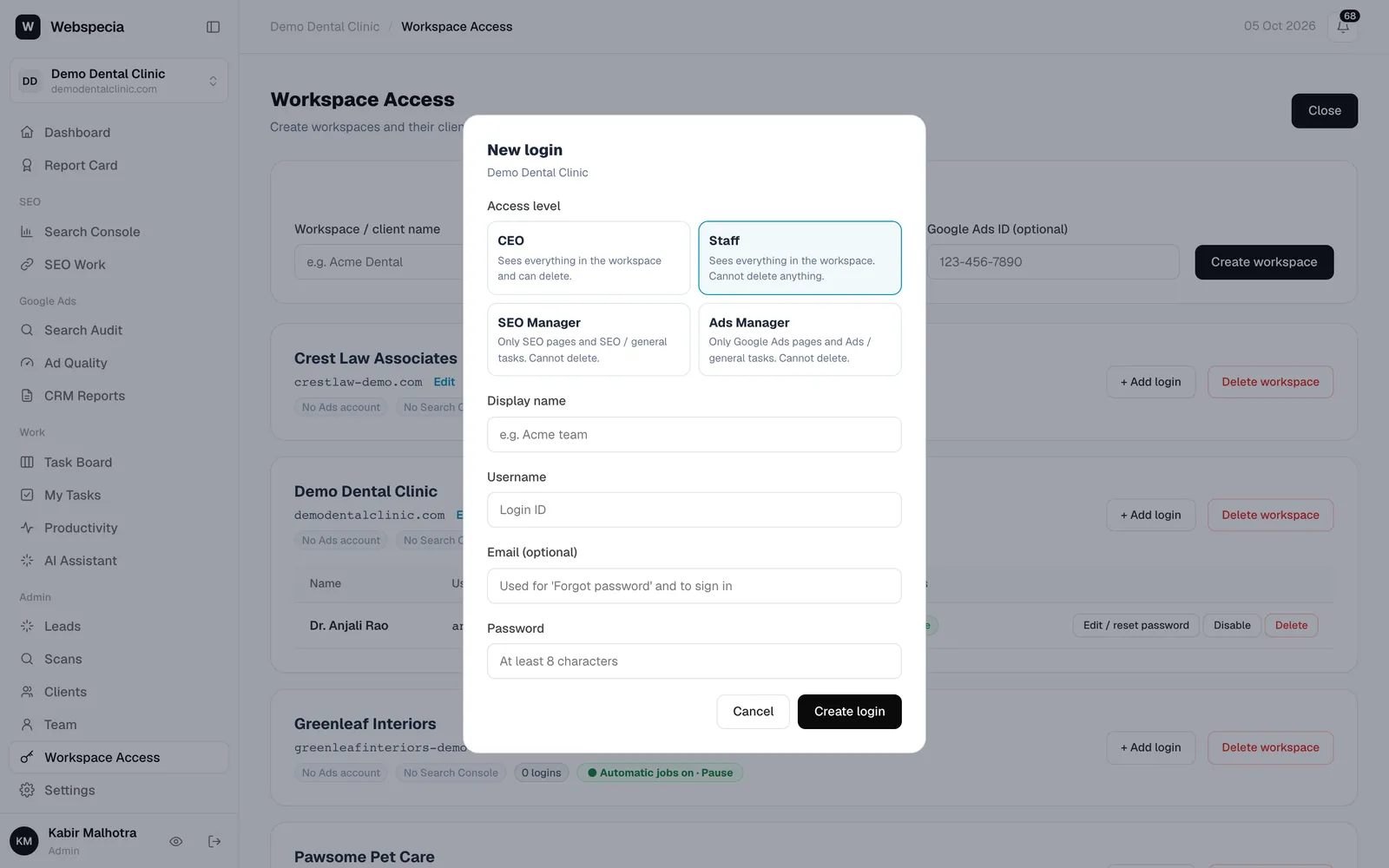
demodentalclinic.com; www and https are added automatically). Add a Google Ads ID if you manage their ads. - Click Create workspace. The New login dialog opens so you can create the client’s CEO login right away, or close it and do it later.
Read the workspace badges
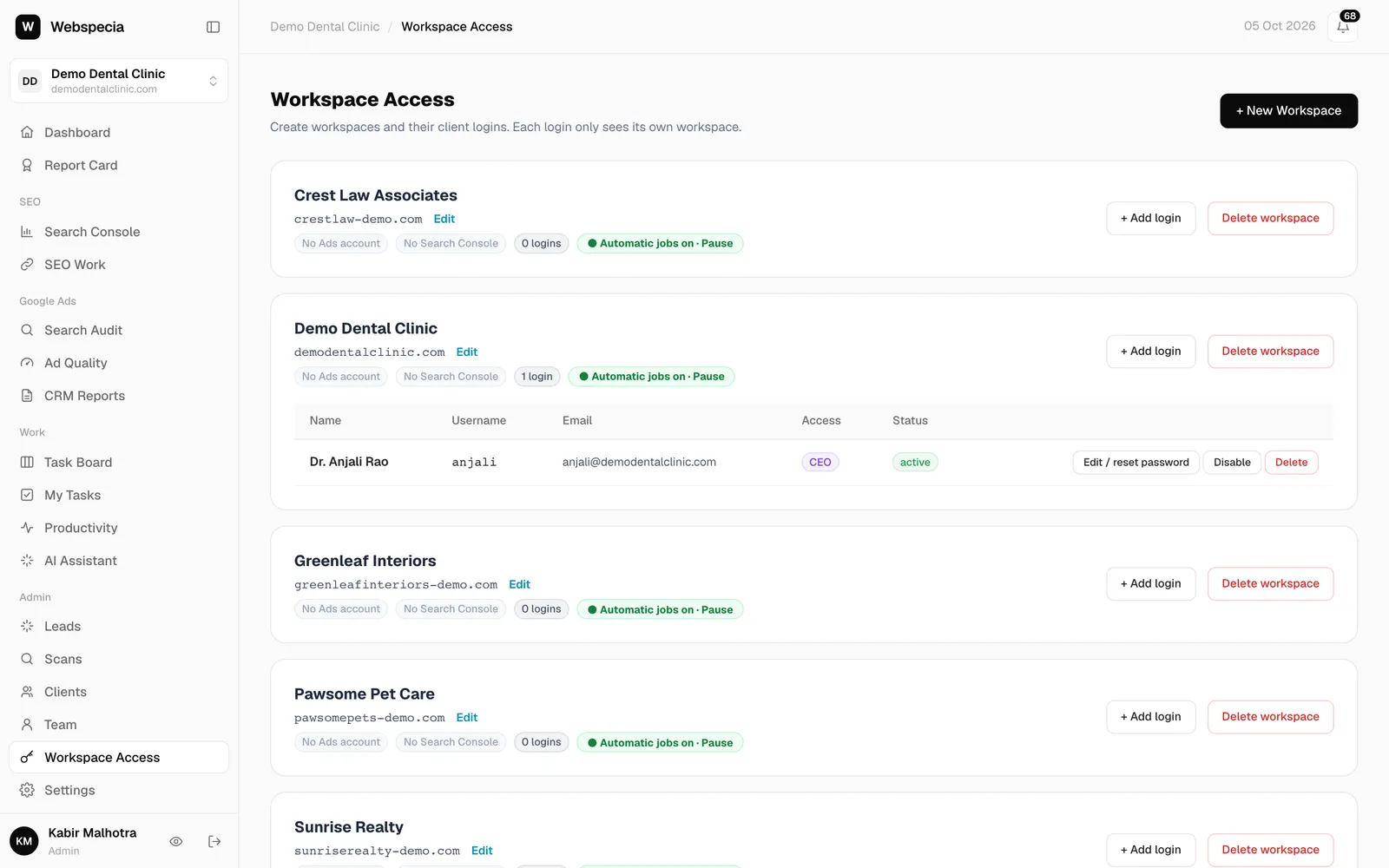
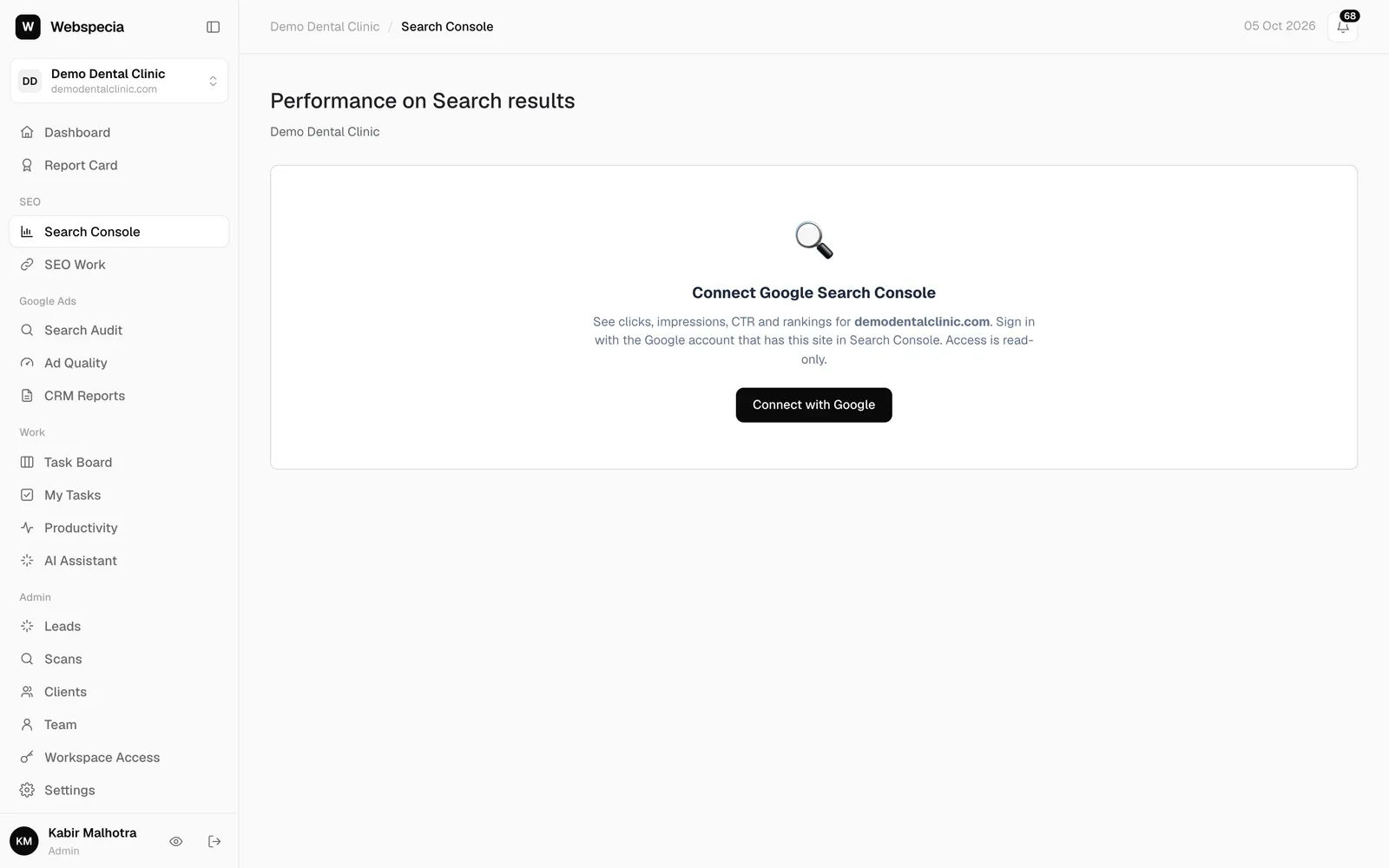
- Search Console linked / GSC: domain not found / No Search Console: the connection status. See Connect Google Search Console.
- 1 login: how many client logins this workspace has.
- ● Automatic jobs on · Pause: the nightly jobs for this workspace.
Switch between clients
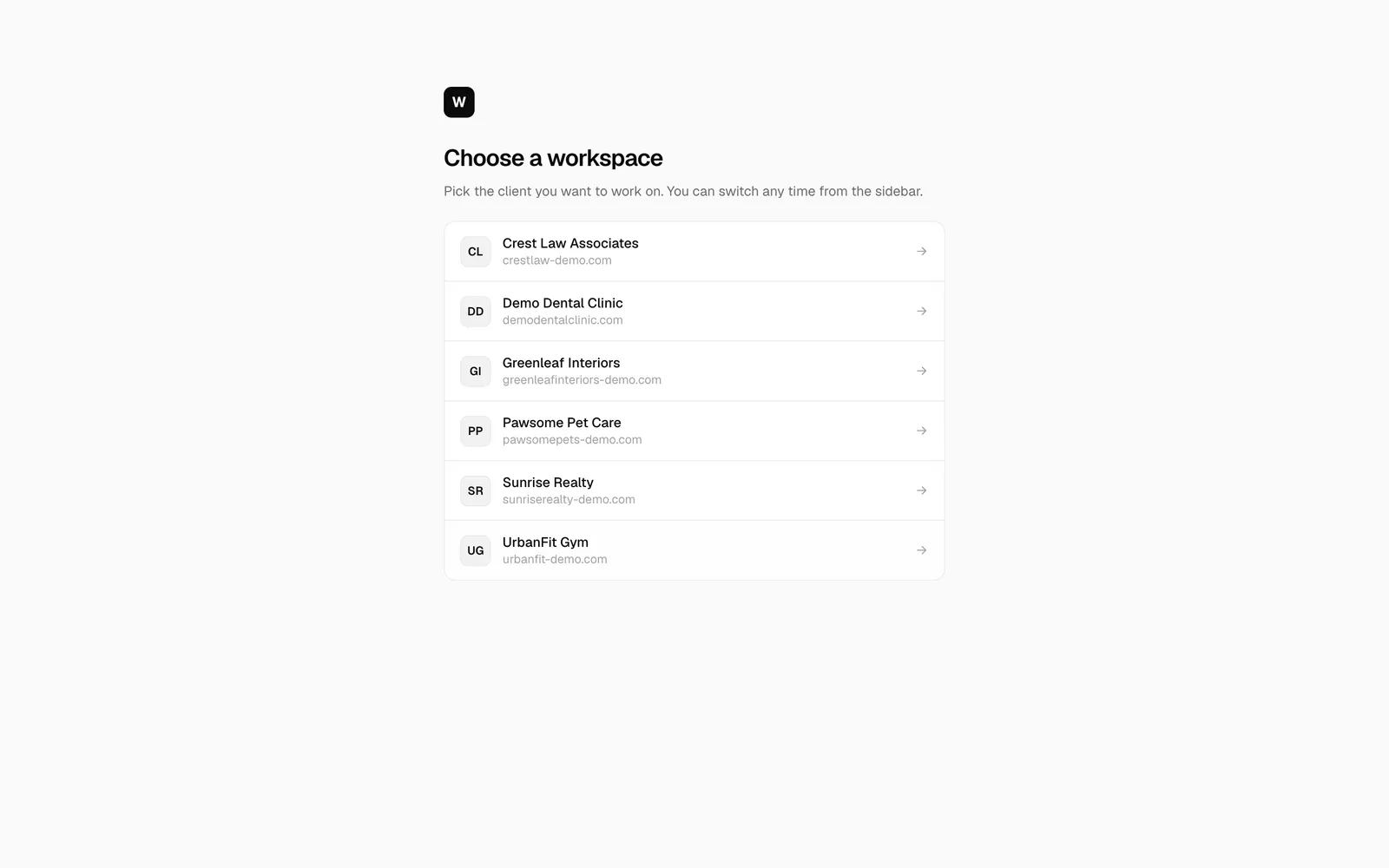
- After logging in you see Choose a workspace. Click a client to open it (a search box appears when you have more than 6).
- To switch later, click the workspace card at the top of the sidebar.
Pause automatic jobs
Click Pause on a workspace to stop its weekly website scan, daily link checks, monthly backlink refresh, monthly AI check, content tracking and monthly report-card freezing. Click Resume to turn them back on. Pausing is useful for a client who is between contracts.
Edit or delete a workspace
- Click Edit next to the domain to change it, then Save.
- Delete workspace asks you to type the workspace name and your own password. The workspace is archived: every login stops working immediately, but data is kept. Restore it from ▸ Deleted workspaces at the bottom of the page.
Related guides
Still stuck? Our team will walk you through it.
Talk to Webspecia