Browse all guides
- Get your agency account
- Create a client workspace
- Connect Google Search Console
- Add your team
- Give clients their own login
- Set monthly SEO plans
- Build your link library
- Create and apply niche profiles
- Review and approve work
- Monitor link health
- Track team performance
- Report cards and client emails
- Backlink profile
- Track AI search (AEO & GEO)
- Recurring tasks and the Task Board
For clients & business owners · 2 min read
Use the Search Console report
Explore your Google searches, pages and keywords, and track the keywords that matter to you.
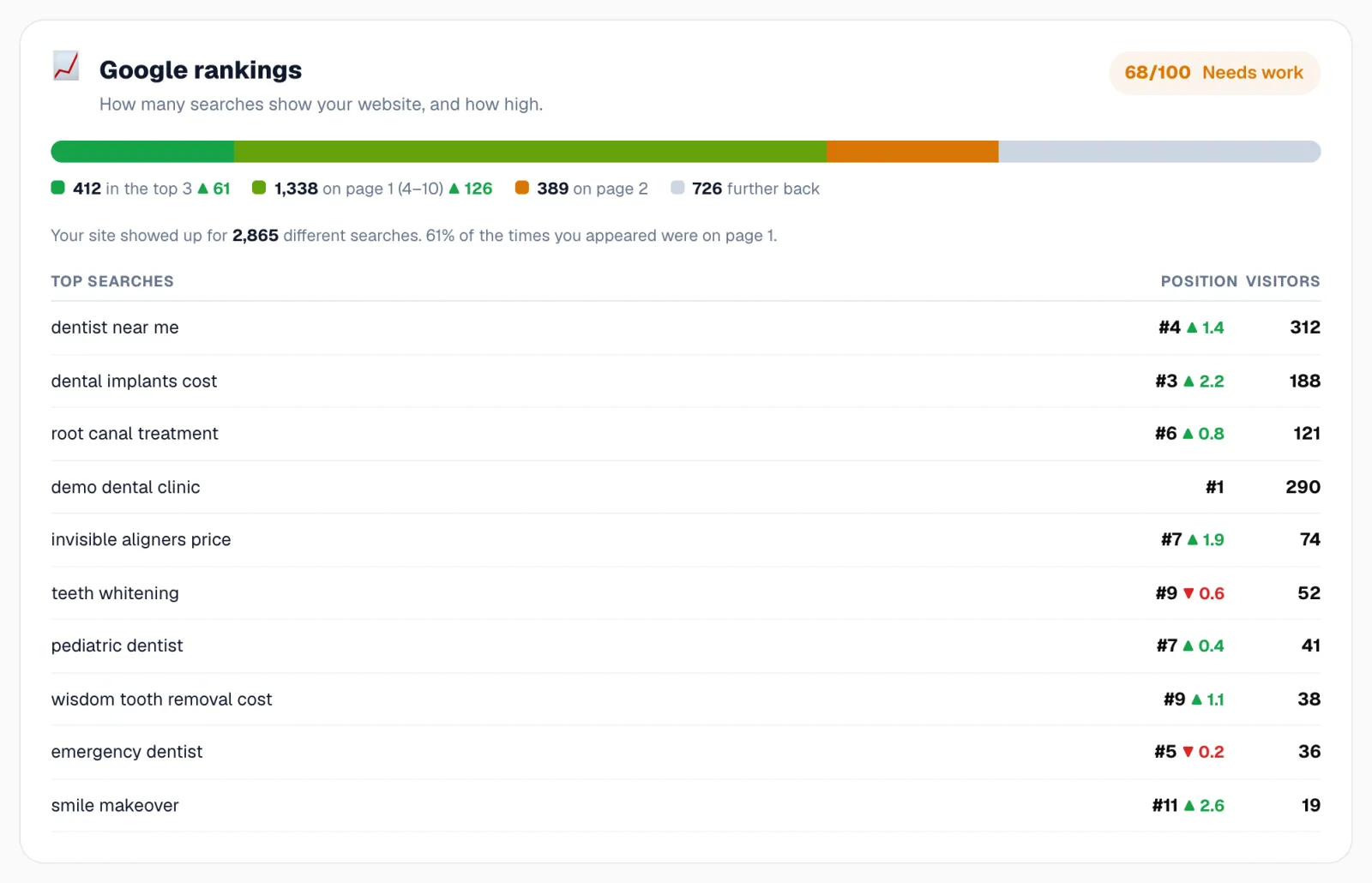
Click Search Console in the sidebar after connecting it. You see total clicks, impressions, average CTR and average position, with comparisons.
Change what you see
- Choose a date range from Last 7 days to Last 16 months.
- Compare with the Previous period or the Same period last year.
- Use + New filter to look at one keyword, page, country or device.
Tabs
- Queries: what people searched. Filter by Improved, Declined, New or Lost, and branded vs non-branded.
- Pages: which pages they landed on.
- Countries, Devices and Dates.
- Tracked: the keywords you follow.
Track your keywords
CEO logins can type keywords (comma separated) in the Tracked tab and click Track, or click ☆ on a query. You see each keyword’s position over the last 7 days, its change and best position.
Related guides
For clients & business owners
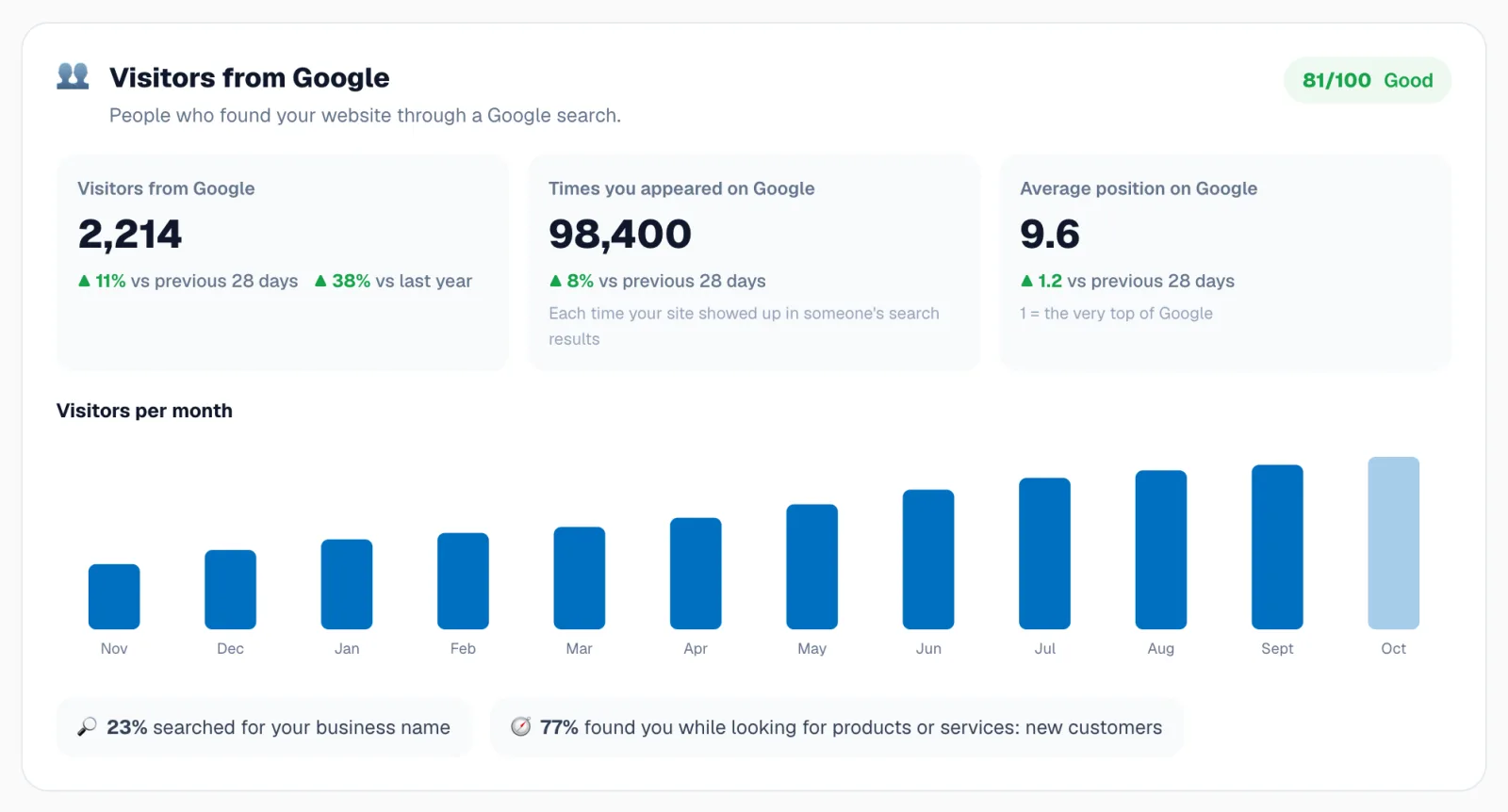
Report card sections explained
Visitors, rankings, best pages, content, website health, reputation, AI search and opportunities, one by one.
For clients & business owners
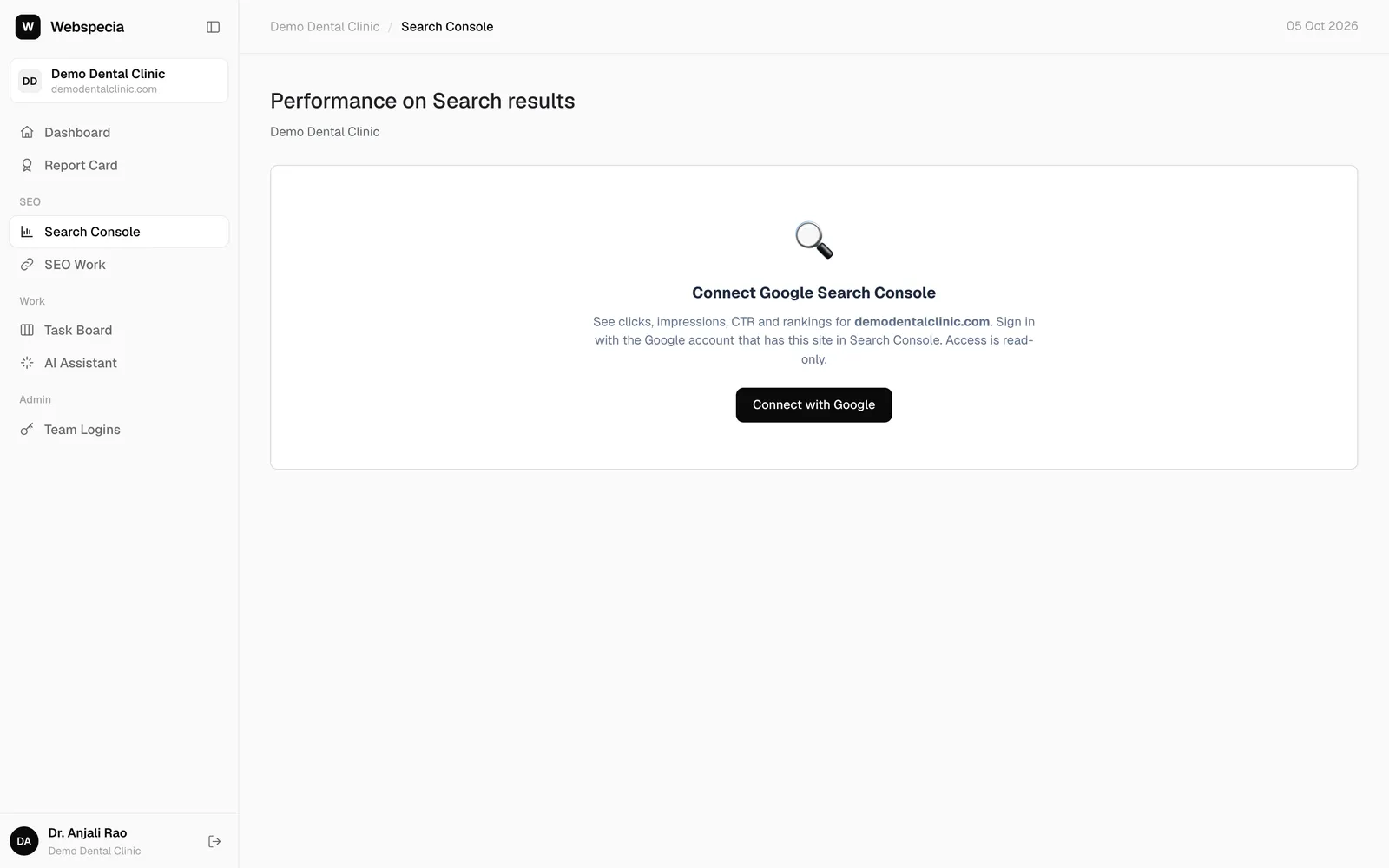
Connect Google Search Console
Link your Google Search Console (read-only) so your visitors, rankings and best pages appear.
Still stuck? Our team will walk you through it.
Talk to Webspecia