
Browse all guides
For agency owners
- Get your agency account
- Create a client workspace
- Connect Google Search Console
- Add your team
- Give clients their own login
- Set monthly SEO plans
- Build your link library
- Create and apply niche profiles
- Review and approve work
- Monitor link health
- Track team performance
- Report cards and client emails
- Backlink profile
- Track AI search (AEO & GEO)
- Recurring tasks and the Task Board
For agency owners · 2 min read
Review and approve work
Check proof, approve in one click or send work back with a note, and assign tasks.
Assign tasks
- In SEO Work → Work → Pipeline, find a card in Backlog or Assigned.
- Click Assign (or Reassign), choose a person in Assign to…, pick a due date and click Save.
- The person gets a notification and the card moves to Assigned.
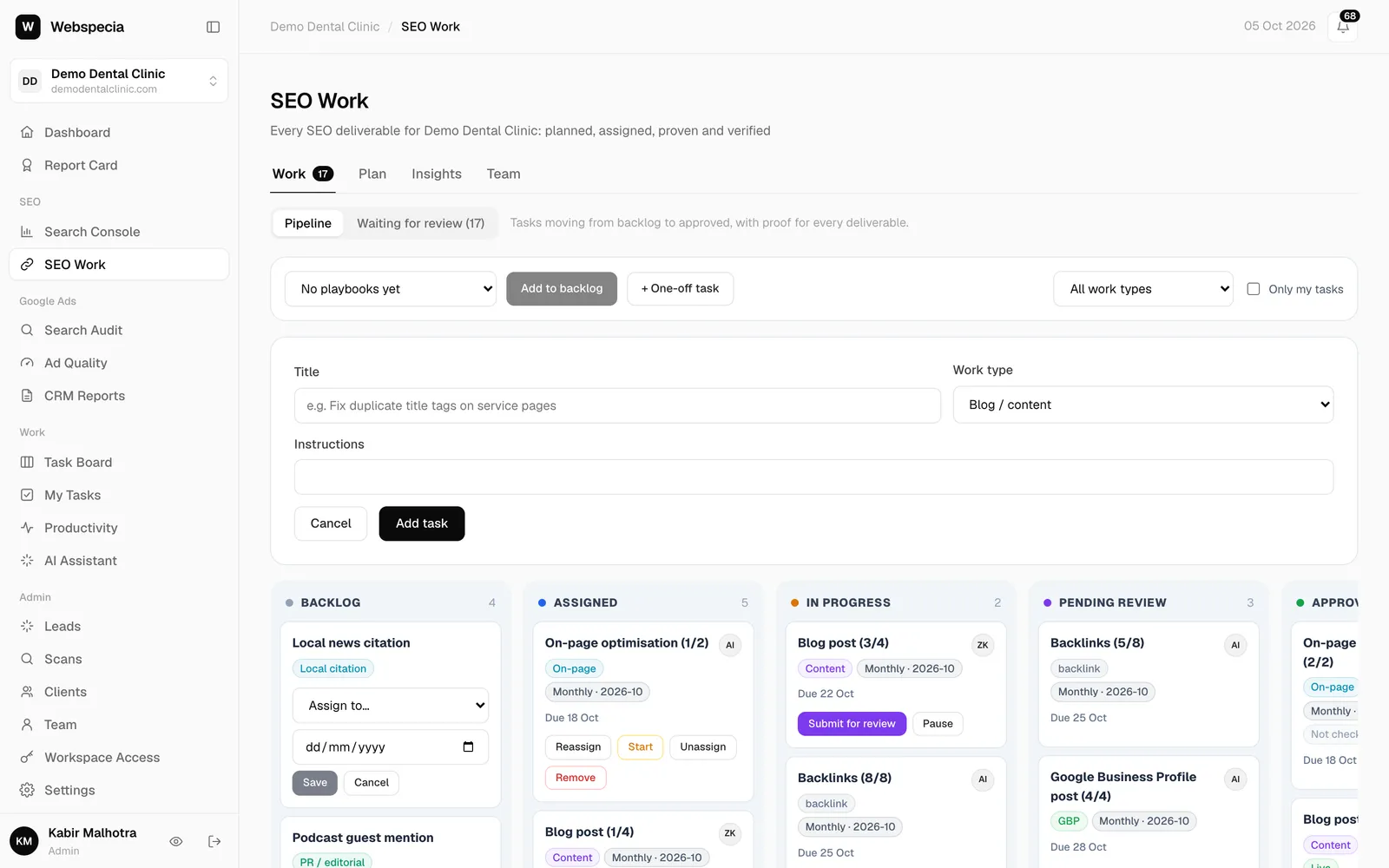
Use + One-off task for anything outside the plan: give it a Title, Work type and Instructions (plus Category and Target site for backlinks) and click Add task. It lands in Backlog.
Review submitted work
- Open Waiting for review. The number on the Work tab tells you how many are waiting, and you get a notification for each submission.
- Each card shows the Proof of work: live URL, anchor text and link type for backlinks, word count and keyword for content, before → after for on-page, and so on.
- Open the link to check it. If the specialist created an account on the site, click Show stored login (every view is logged).
- Click ✓ Approve, or Send back and write what needs fixing.
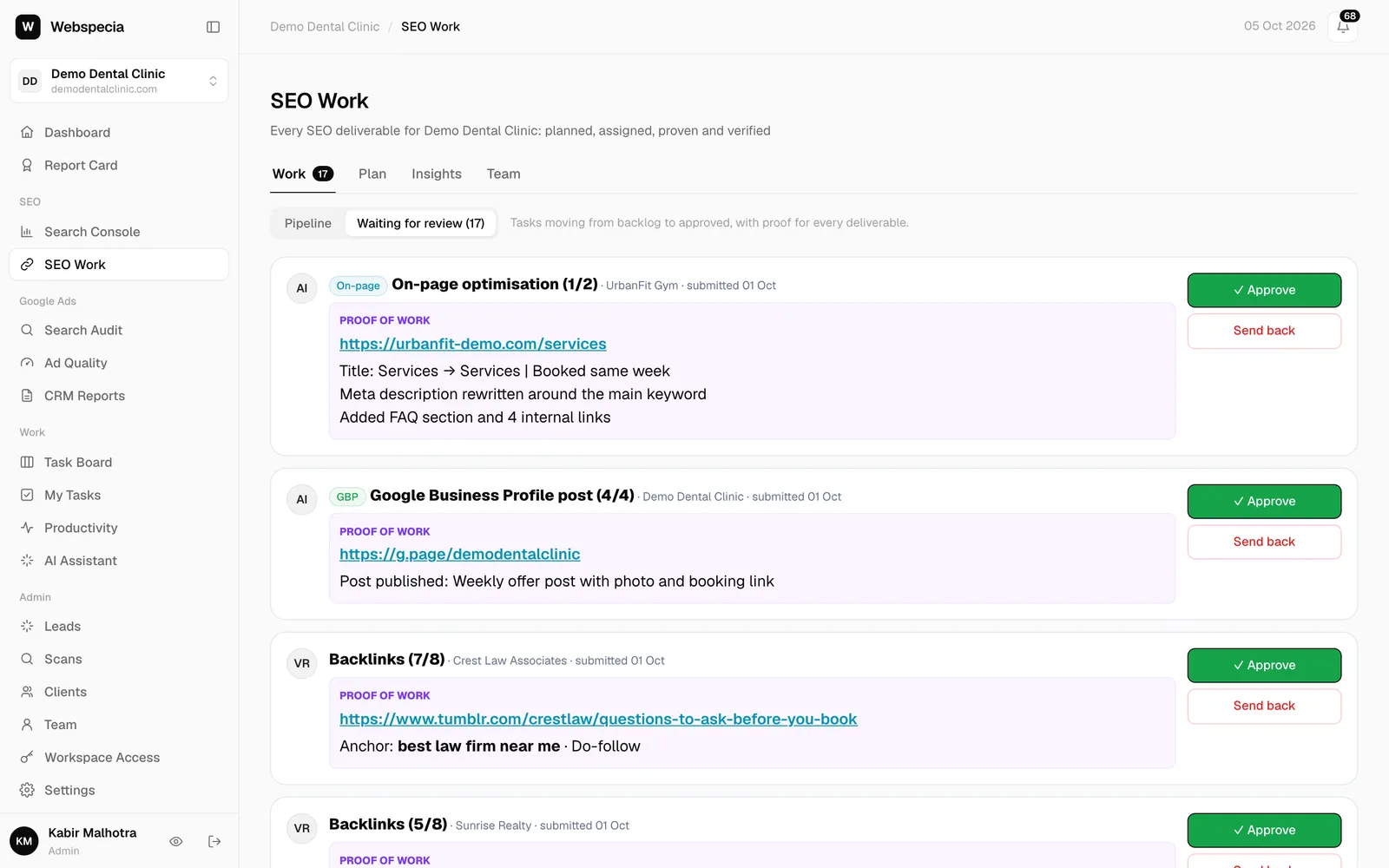
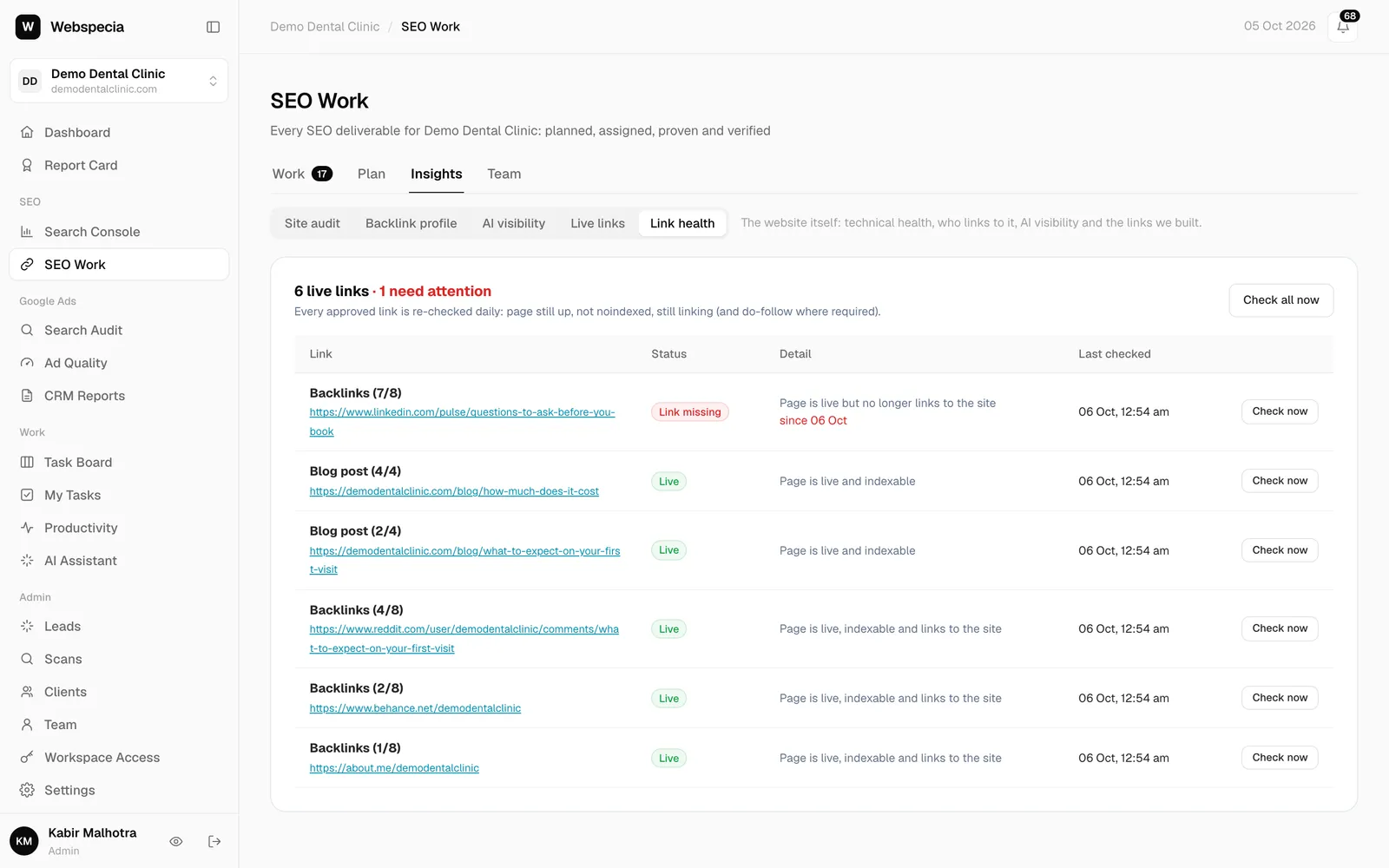
Approved work moves to Approved & live, counts towards the monthly plan and starts being checked daily. Sent-back work goes to Revision needed with your note; the specialist clicks Rework and resubmits.
Still stuck? Our team will walk you through it.
Talk to Webspecia