
Browse all guides
- Get your agency account
- Create a client workspace
- Connect Google Search Console
- Add your team
- Give clients their own login
- Set monthly SEO plans
- Build your link library
- Create and apply niche profiles
- Review and approve work
- Monitor link health
- Track team performance
- Report cards and client emails
- Backlink profile
- Track AI search (AEO & GEO)
- Recurring tasks and the Task Board
For SEO specialists · 2 min read
Publish content from the calendar
Pick content ideas from real Search Console data, schedule them, write from AI briefs and track results.
SEO Work → Plan → Content calendar suggests what to publish next using 90 days of Search Console queries, the client’s sitemap and AI questions where the client isn’t cited. SEO Managers and admins can accept and schedule ideas.
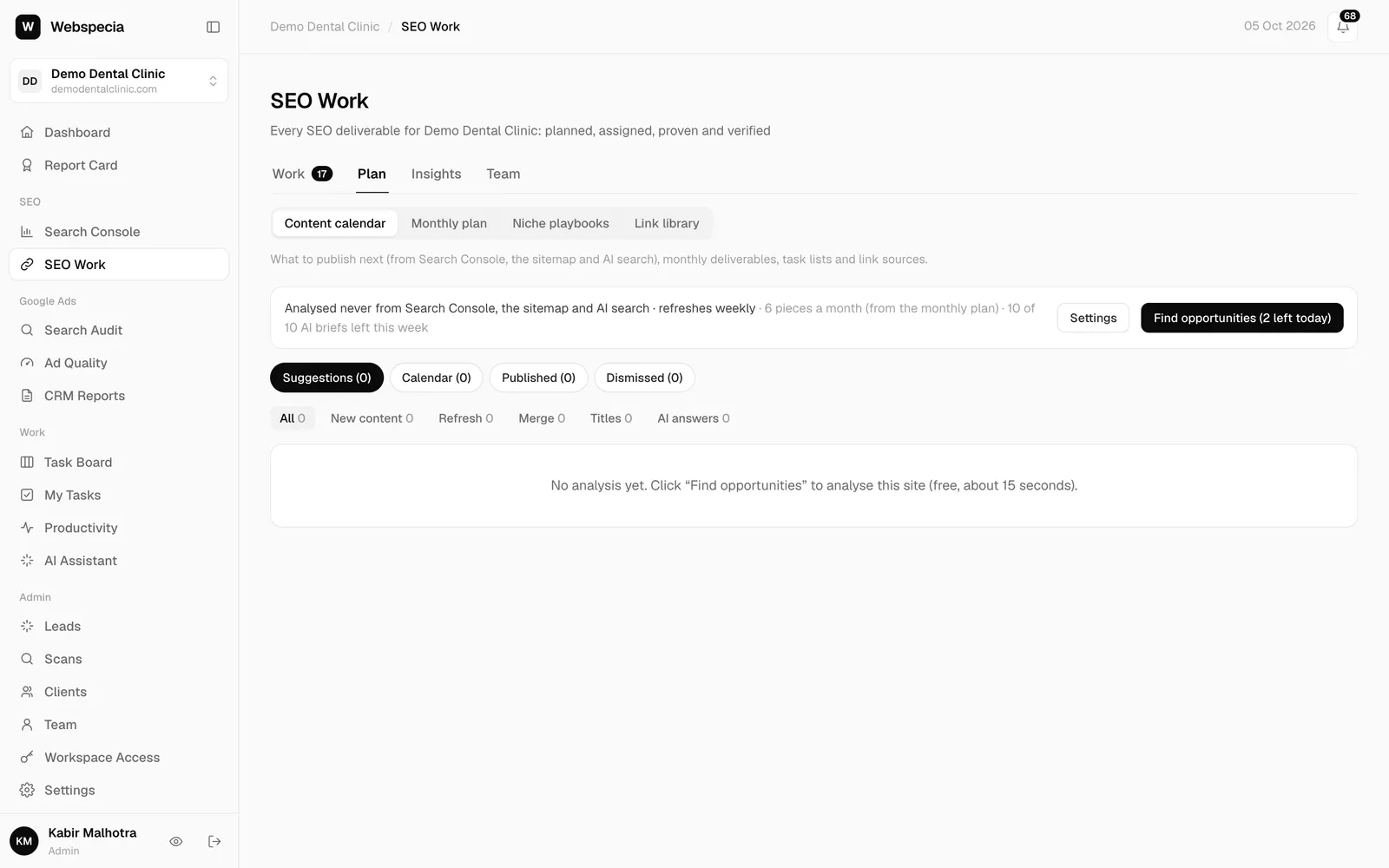
Find and accept ideas
- Click Find opportunities (2 manual runs per day; it also refreshes weekly).
- Filter by New content, Refresh, Merge, Titles or AI answers.
- Click Accept & schedule on a good idea. It goes into the first week with room and creates a pipeline task due that Friday.
- Click Dismiss for ideas that don’t fit and choose a reason (not relevant, already covered, we don’t offer this, not now).
Write from a brief
- Click Write AI brief on a scheduled piece (up to 10 briefs per workspace per week).
- Read the brief: target query, outline, questions to answer and internal links. Use Copy brief if you write elsewhere.
- The brief is also copied into the pipeline task’s instructions.
Move things around
In the Calendar view drag a card to another week, or use its Week of… menu. The task’s due date moves with it.
Publish and see results
Publish, then submit the task with the Published URL. The piece is marked published when approved (or when the sitemap tracker finds it), and its 30, 60 and 90-day Search Console results fill in automatically.
Related guides
For SEO specialists
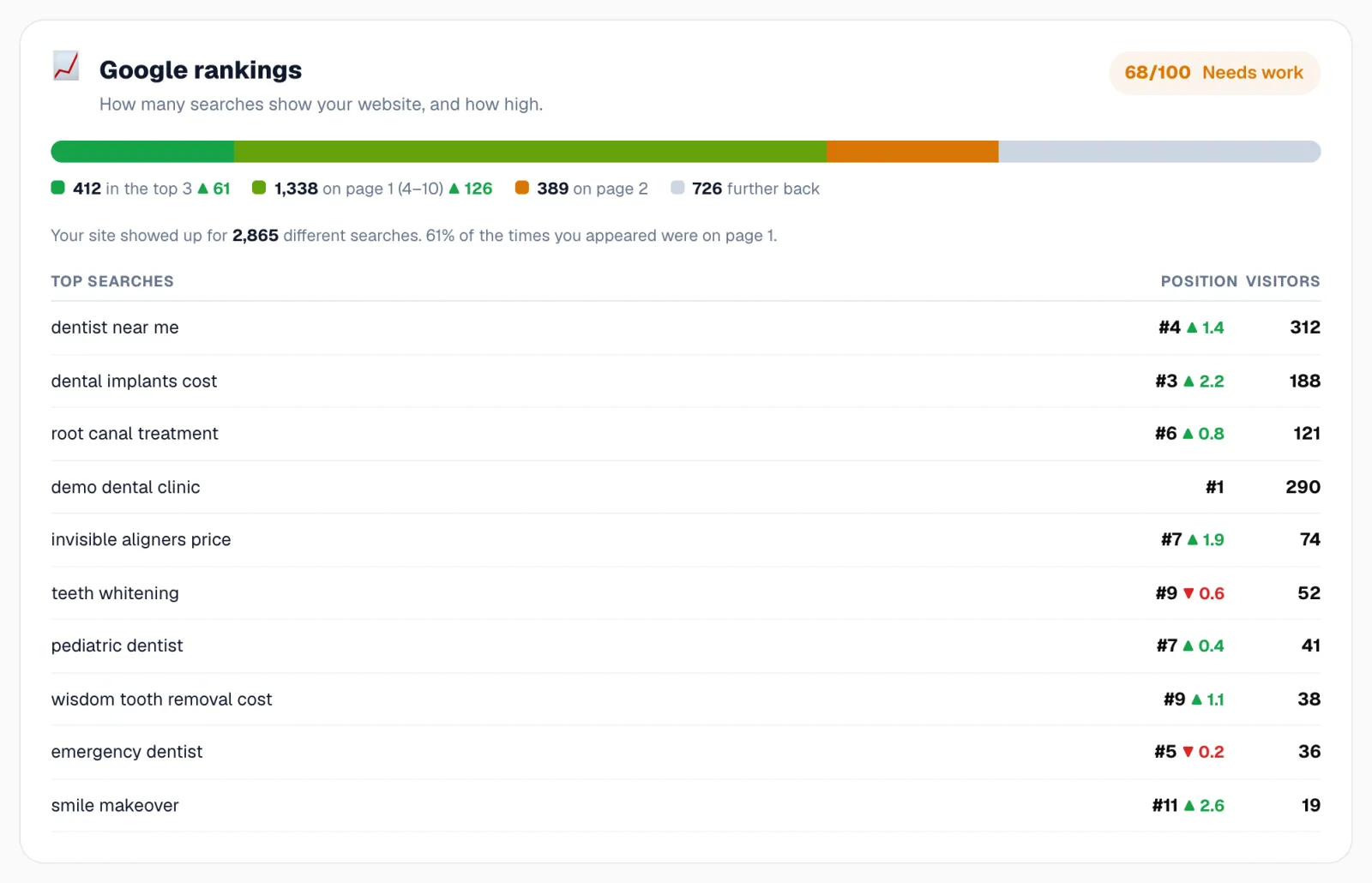
Find opportunities in Search Console
Use the Search Console report to find keywords close to the top 3, pages that need better titles, and track rankings.
For SEO specialists
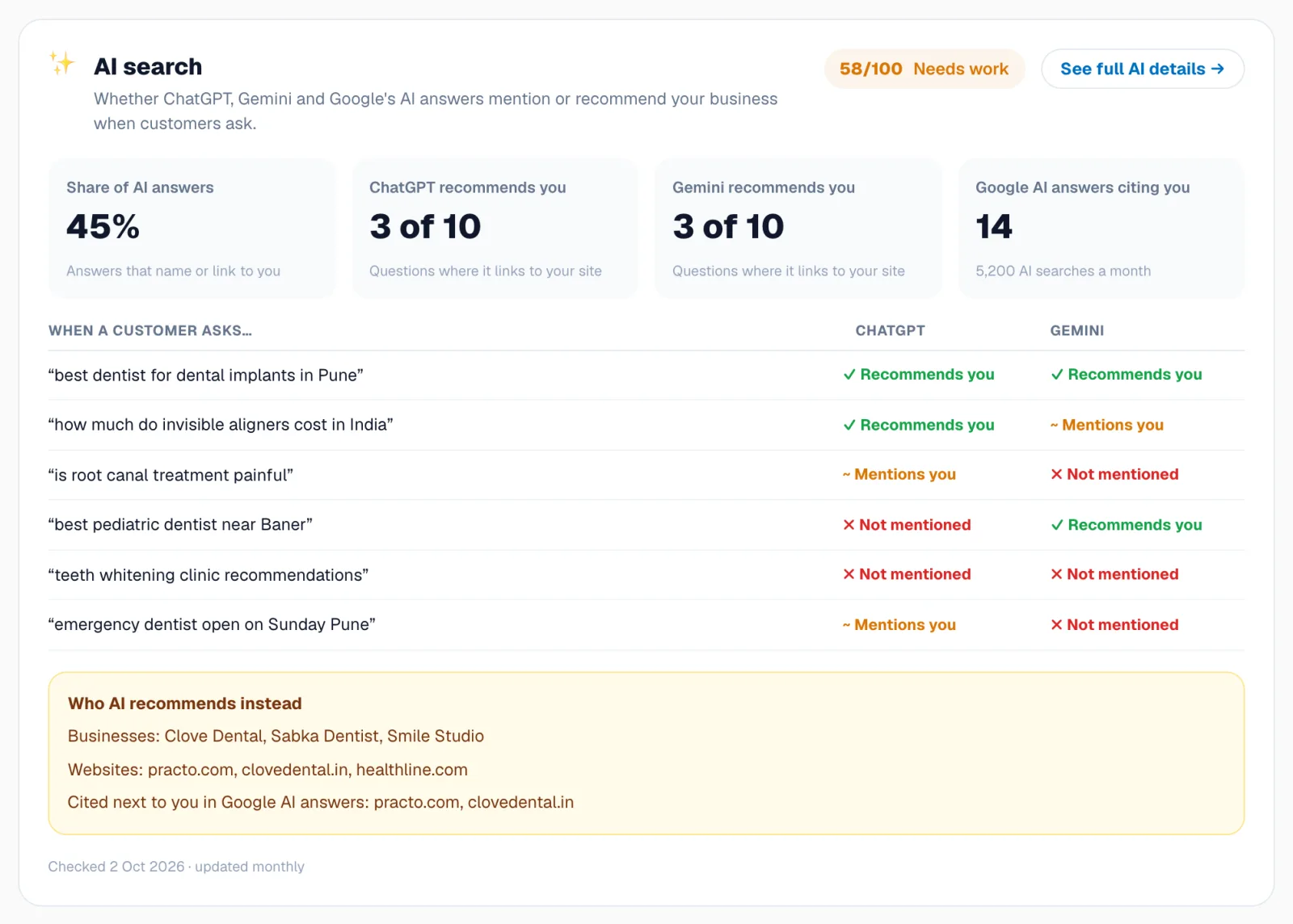
Improve AI search visibility
Read the monthly ChatGPT and Gemini results and turn questions where the client is missing into content.
Still stuck? Our team will walk you through it.
Talk to Webspecia