
Browse all guides
- Get your agency account
- Create a client workspace
- Connect Google Search Console
- Add your team
- Give clients their own login
- Set monthly SEO plans
- Build your link library
- Create and apply niche profiles
- Review and approve work
- Monitor link health
- Track team performance
- Report cards and client emails
- Backlink profile
- Track AI search (AEO & GEO)
- Recurring tasks and the Task Board
For SEO specialists · 3 min read
Take tasks from the Task Hub
Every task for your department in one place: take one with a click, finish it, and see your productivity.
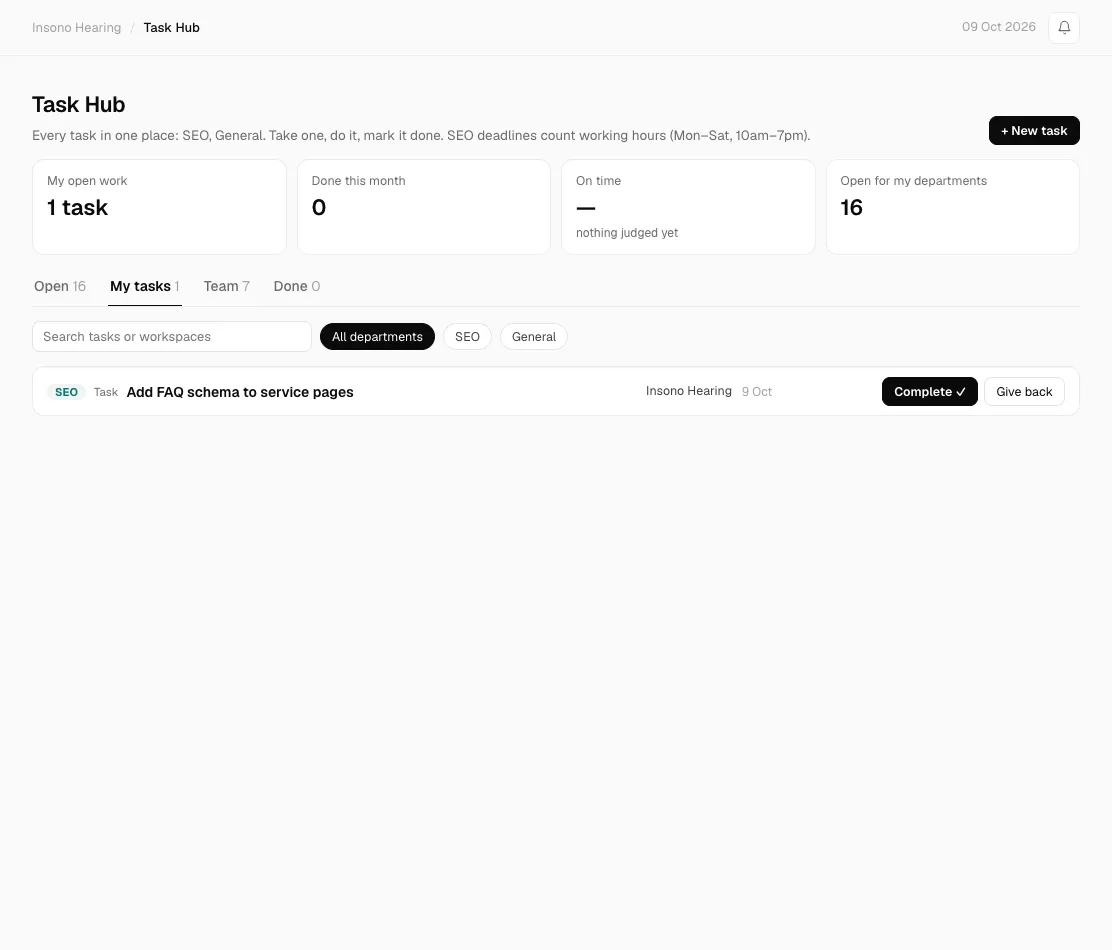
The Task Hub (Work → Task Hub) shows every task for your departments: SEO, Google Ads, development and general, whatever created it (niche profiles, monthly plans, Search Console, the site scan, recurring tasks or a colleague). If you hold several roles you see each role’s department. SEO work shows the open tasks of every workspace assigned to you. Each one says what to do (profile, listing, article or answer), on which site, and how many working hours it takes.
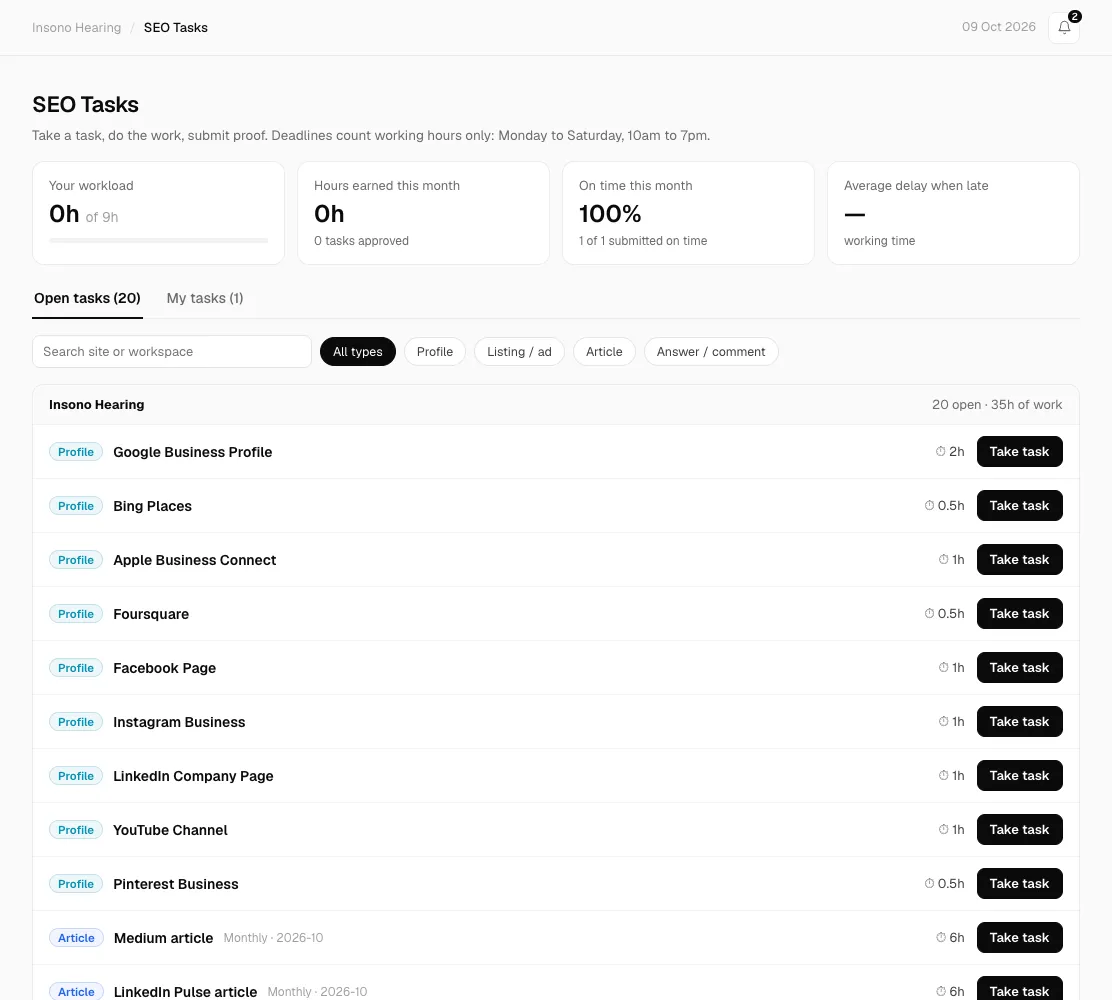
Take a task
- Open Task Hub → Open. Filter by department or workspace, or search.
- Click a task to read its instructions, then click Take task. It is yours now and nobody else can take it.
- The clock starts: the deadline is the task’s hours counted in working time only, Monday to Saturday, 10am to 7pm. A 6-hour article taken at 5pm is due at 2pm the next working day.
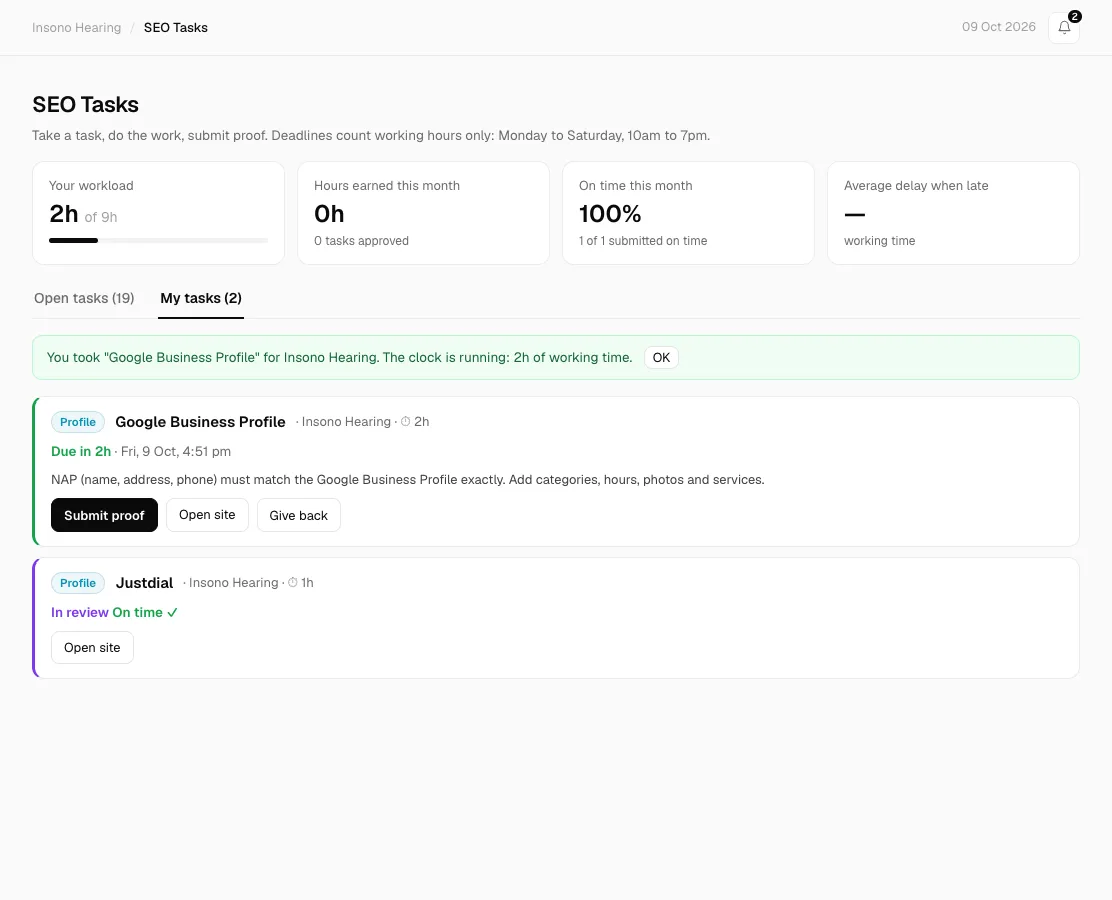
Finish it
- Go to My tasks. Each task shows Due in… or Overdue by….
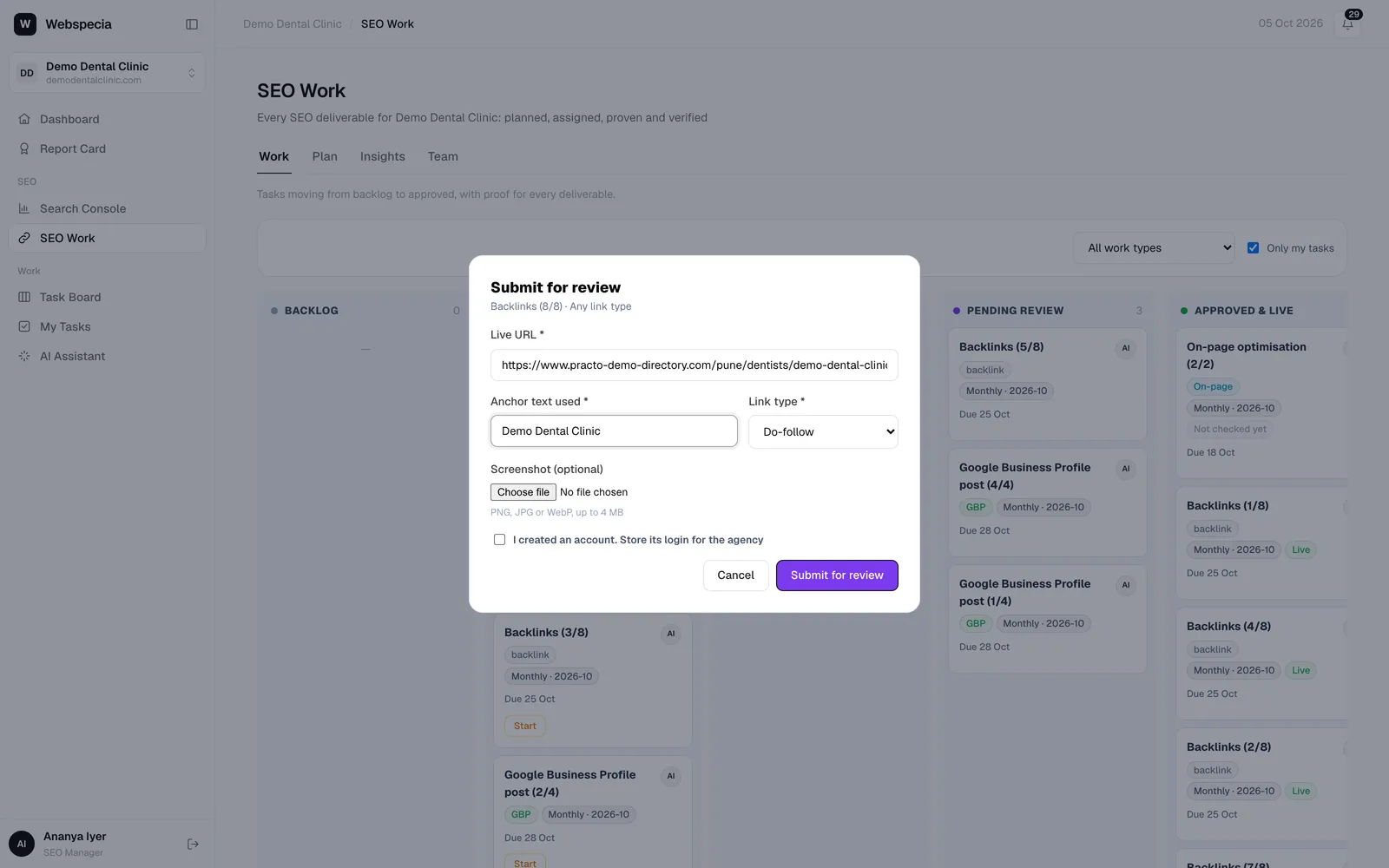
- Do the work, then click Submit proof and add the live link (and screenshot or login where asked).
- Submitted before the deadline counts as on time. If it is sent back, click Start fixing and submit again. Your on-time result doesn’t change.
Checked automatically
Work on the client’s own website is checked on the live page when you submit. If something is missing you see exactly what, and you can’t submit until it’s fixed:
- New article: on the client’s site, can be indexed by Google, at least 600 words, links to at least 2 other pages on the site.
- Refresh: at least 10% of the text changed since the task was created, and the page covers the target search.
- Title fix: the page title actually changed.
- Merge (accepted by hand from the Content calendar): the other pages 301-redirect to the page you kept.
- Internal link: the source page now links to the target page in its text. Later site scans keep checking, and you are told if the link disappears.
Other tasks (Google Ads, development, general)
- Click Take: it becomes yours. Click Complete ✓ when it’s done, or Give back with a reason.
- Anyone can add a task with + New task: choose the department, workspace, whether it repeats (every day, week or month) and who does it (you, or open for the department).
- Your dashboard shows the open tasks for your role with a Take button, and your taken tasks with Done ✓ (or Submit for SEO work), plus this month’s numbers. One click, no need to open the Task Hub.
Rules that keep it fair
- You can hold up to 9 hours of work at a time (one working day). Submit something to take more.
- Can’t finish a task? Click Give back and say why. It returns to the open tasks for everyone, and the reason is visible to your admin.
- Approved tasks add their hours to your Hours earned this month.
Related guides
For SEO specialists
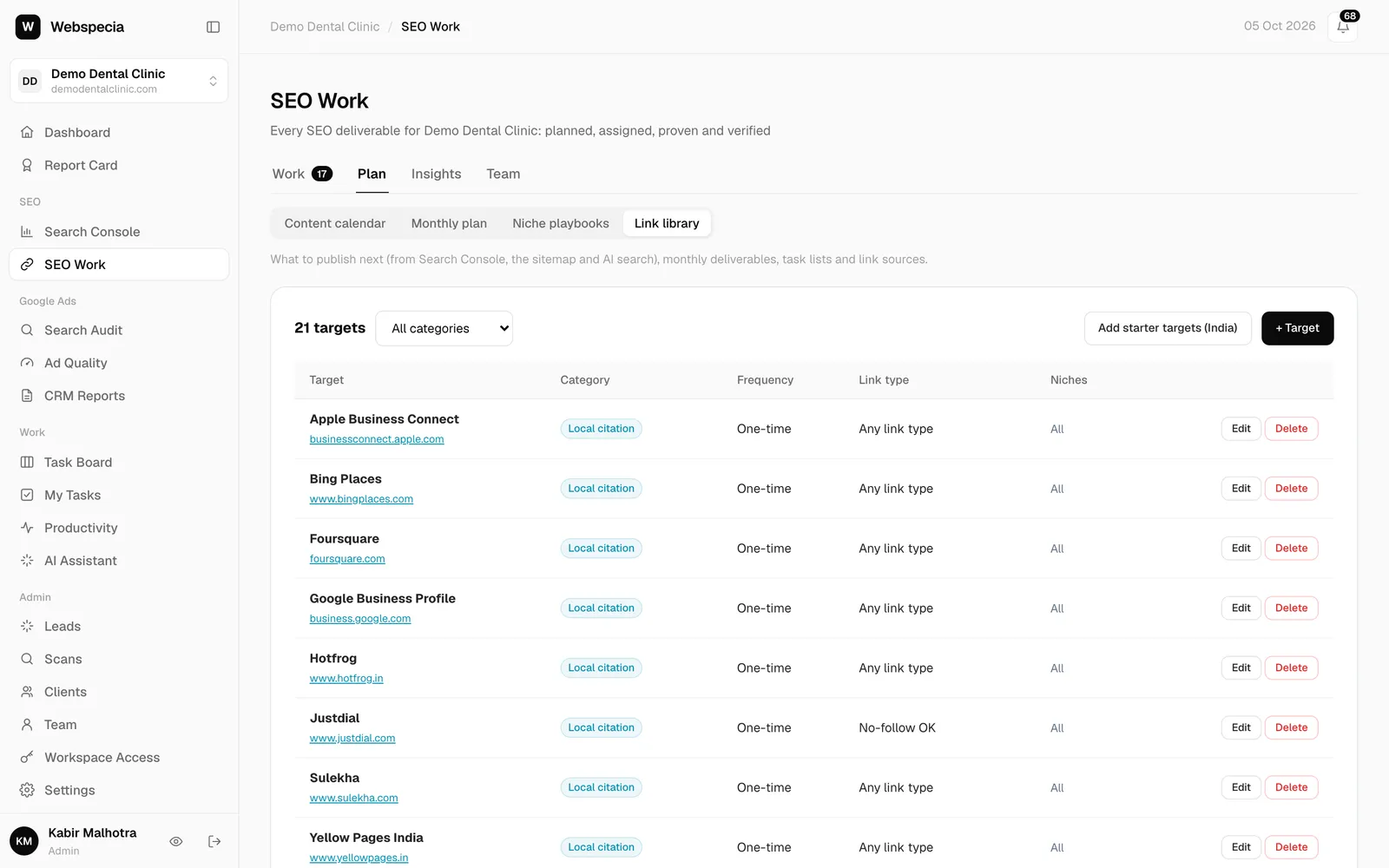
Build backlinks and citations
Use the target, guidelines and link rules on each task to build links that pass review and stay live.
For SEO specialists
Submit proof for each work type
The exact proof AgencyHub asks for: backlinks, content, on-page, technical and Google Business Profile.
Still stuck? Our team will walk you through it.
Talk to Webspecia