
Browse all guides
For agency owners
- Get your agency account
- Create a client workspace
- Connect Google Search Console
- Add your team
- Give clients their own login
- Set monthly SEO plans
- Build your link library
- Create and apply niche profiles
- Review and approve work
- Monitor link health
- Track team performance
- Report cards and client emails
- Backlink profile
- Track AI search (AEO & GEO)
- Recurring tasks and the Task Board
For SEO specialists · 2 min read
Work the SEO pipeline
How a task moves from Assigned to Approved, and what each button does.
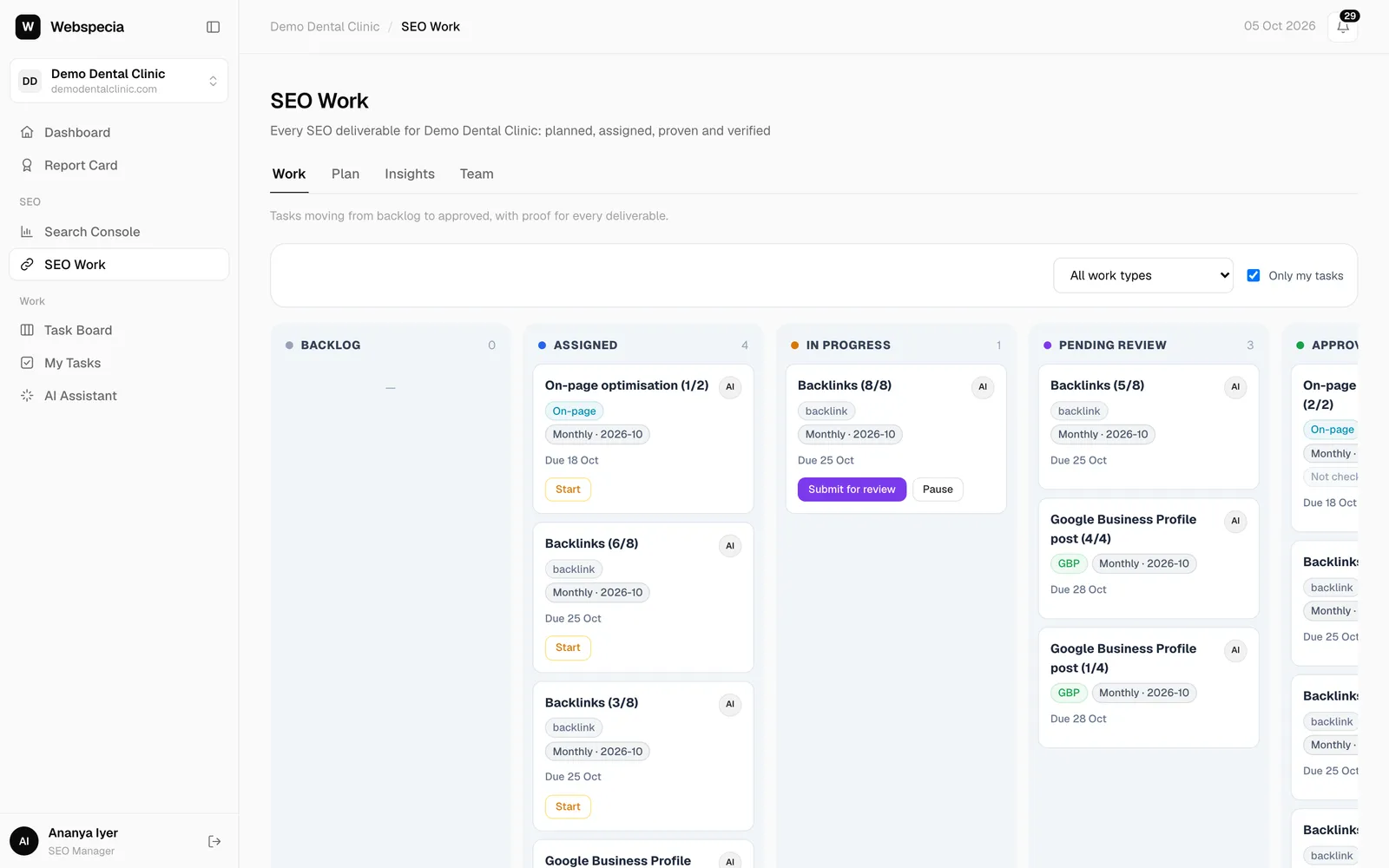
Open SEO Work → Work → Pipeline. Only my tasks is ticked for you, and you can filter by work type.
The columns
| Column | Meaning |
|---|---|
| Backlog | Planned but not assigned yet. |
| Assigned | Yours to do. Click Start when you begin. |
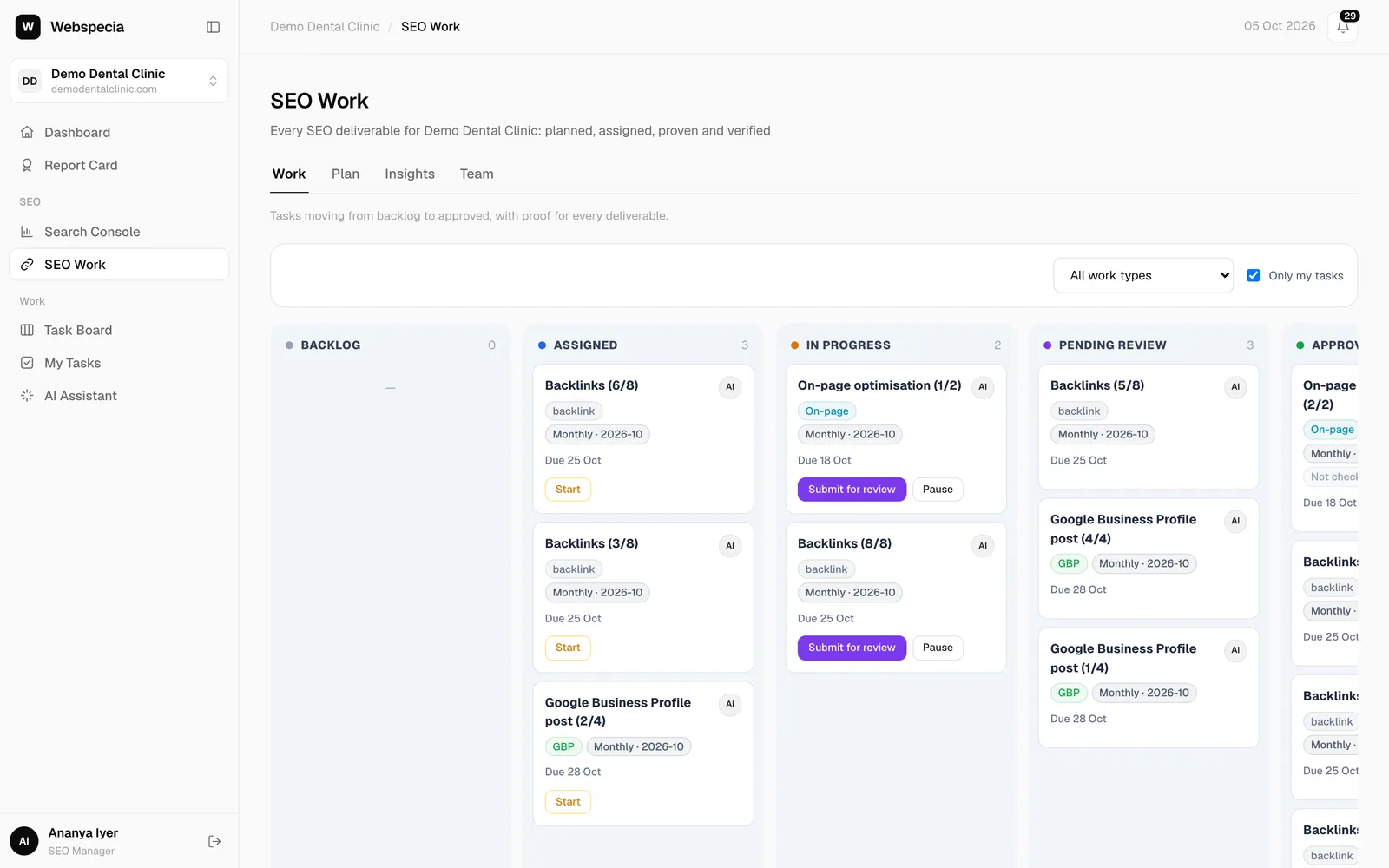
| In progress | You are working on it. Submit for review when done, or Pause. |
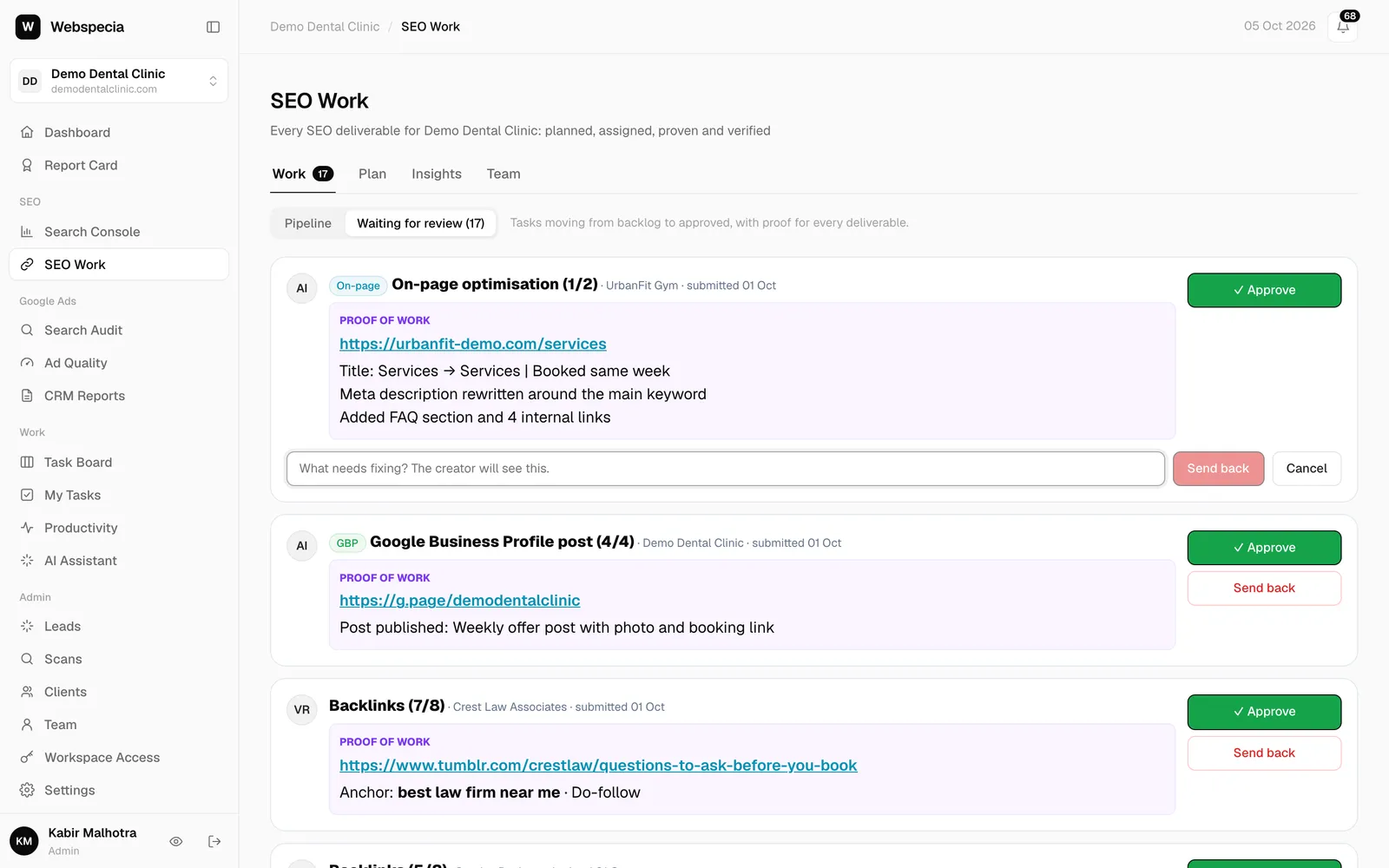
| Pending review | Submitted. Waiting for an admin to approve. |
| Approved & live | Approved. Backlinks and content are now checked daily. |
| Revision needed | Sent back with a note. Click Rework, fix it and submit again. |
Do a task
- Click the card title to expand it. Read the target URL, the link-type requirement, any minimum DA/DR and the instructions.
- Click Start. The card moves to In progress.
- Do the work outside AgencyHub (publish the post, create the listing, make the change).
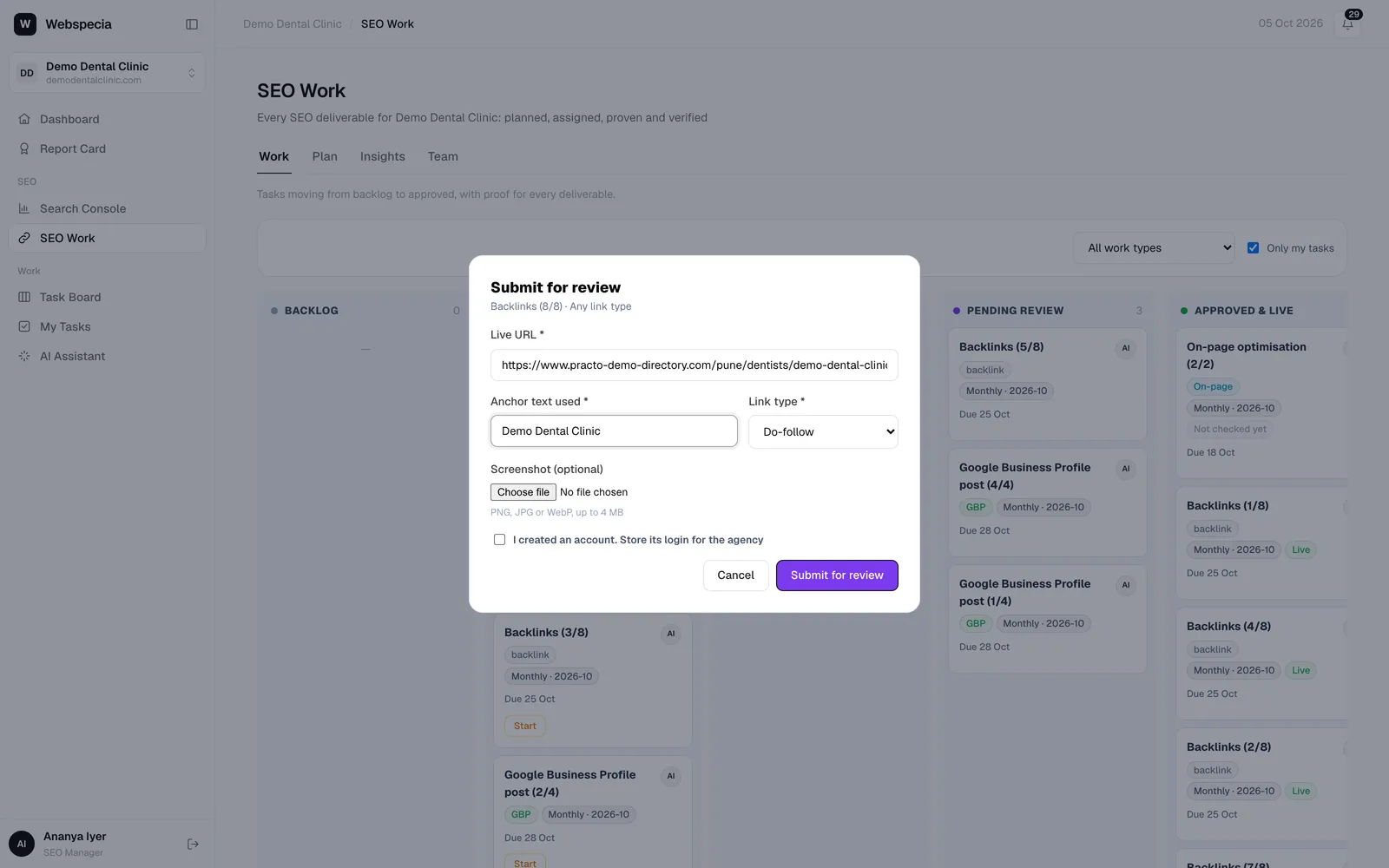
- Click Submit for review and fill in the proof. See Submit proof for each work type.
Still stuck? Our team will walk you through it.
Talk to Webspecia